Change your sign-in email
Check that your sign-in email is confirmed, send the confirmation again, and ask the team to move your account to a new address.
The email you sign in with is the key to your account: your campaigns and credits are kept under it. So you can't edit it in the dashboard. The team behind The Call Guy moves your account to a new address for you.
Check that your email is confirmed
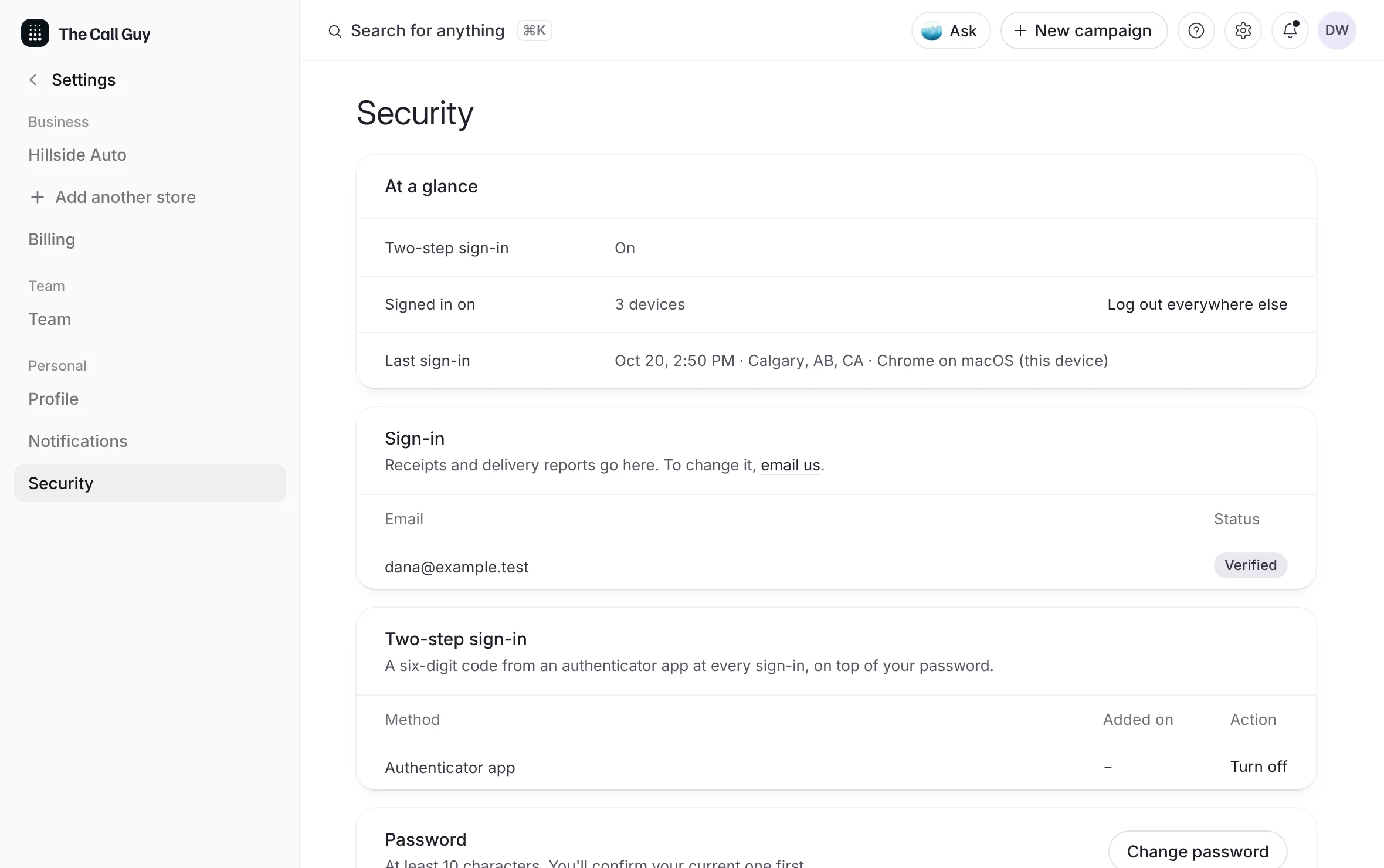
Select your initials at the top right of the dashboard, then Security.
Look at Sign-in. Your email shows Verified or Not verified.
If it says Not verified:
Select Resend at the end of the row.
Open the email and select its link.
What you see
"Sent. Check your inbox." If one went out a moment ago, the page says "One was sent a moment ago. Check your spam folder."
 Example
Some things wait on a confirmed email, such as inviting your team and buying credits. See Confirm your email.
Ask for a new sign-in email
Email contact@thecallguy.ca from your current sign-in email.
Give the new address.
The email us links under Sign-in in Security, and under Email in your Profile, open that email for you.
The team moves your campaigns and credits over to the new address. From then on, you sign in with it.
Good to know
A teammate's sign-in email is their own. Each person asks for their own change.
An address can hold its own Call Guy account or seats on other businesses' workspaces. See Several workspaces on one login.
Related
Last updated October 19, 2026
Was this helpful?