All stores at a glance
See every store's credits, deliveries and calls back side by side, with one campaigns list and one calendar across the group.
All stores puts every store in your group side by side: its credits, what it delivered and the calls back to its campaign line. It also has one Campaigns list, one Calendar, one Inbox and one Billing across every store. Pages that belong to one store, such as Campaign line or Voice library, ask you which store first.
Open All stores
Select the pill at the top of the sidebar.
Select All stores, the first row under your group's name.
What you see
a page titled with the number of stores in your group, and one row per store, over Last 30 days. The pill now shows your group's name. The sidebar's Home, Campaigns and Calendar open the group's versions.
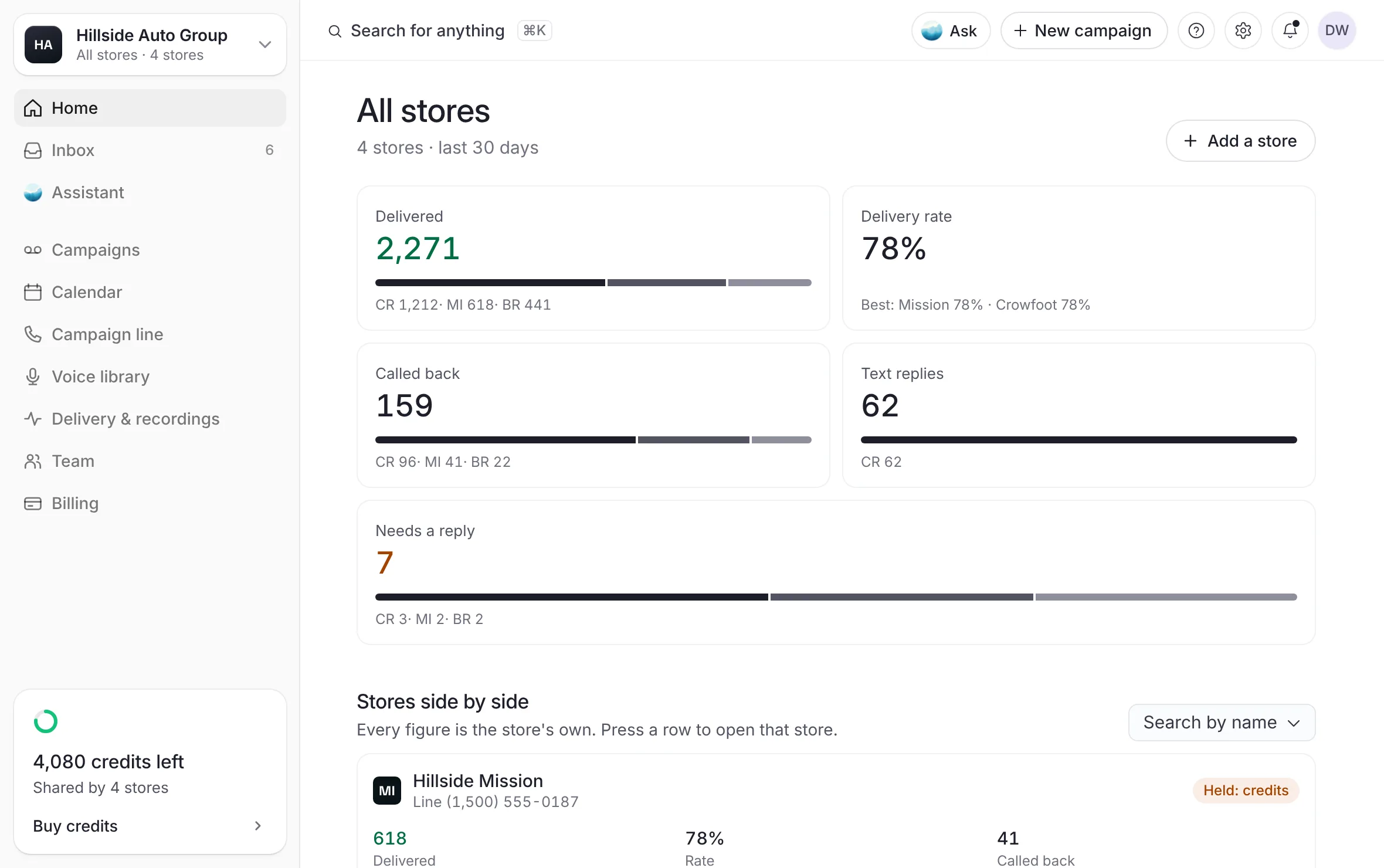 Example
What the table shows
Each row is one store:
Store: the store's name, with a tag when something is under way: Sending, Scheduled or In review, or Finish setup when its setup isn't done.
Credits: the store's balance. When your stores spend one balance, the stores' rows leave it out and the All stores row shows it as shared credits.
Delivered: voicemails delivered over Last 30 days.
Called back: calls to the store's campaign line over the same days. Counts calls to that number only.
A store whose setup isn't finished reads Not set up in its figures.
The last row, All stores, adds the stores up. When your stores share one balance, its credits figure is that one balance, not a sum.
The line under the table says: "Called back means calls to the campaign line. Counts calls to that number only."
Narrow and sort the table
Select Search by name to open a list of your stores with a search field.
Tick the stores you want to see. Select all and Clear all tick or clear every store. With none ticked, the table shows every store.
Select the Store column's head to sort from A to Z or from Z to A.
If nothing matches, select Show every store.
Open one store from the table
Select a store's row, or the arrow at the end of it.
What you see
that store opens on its Home, and you are back on one store.
The group's owner also has Add a store at the top right. See Add another store.
Campaigns across every store
On All stores, select Campaigns in the sidebar.
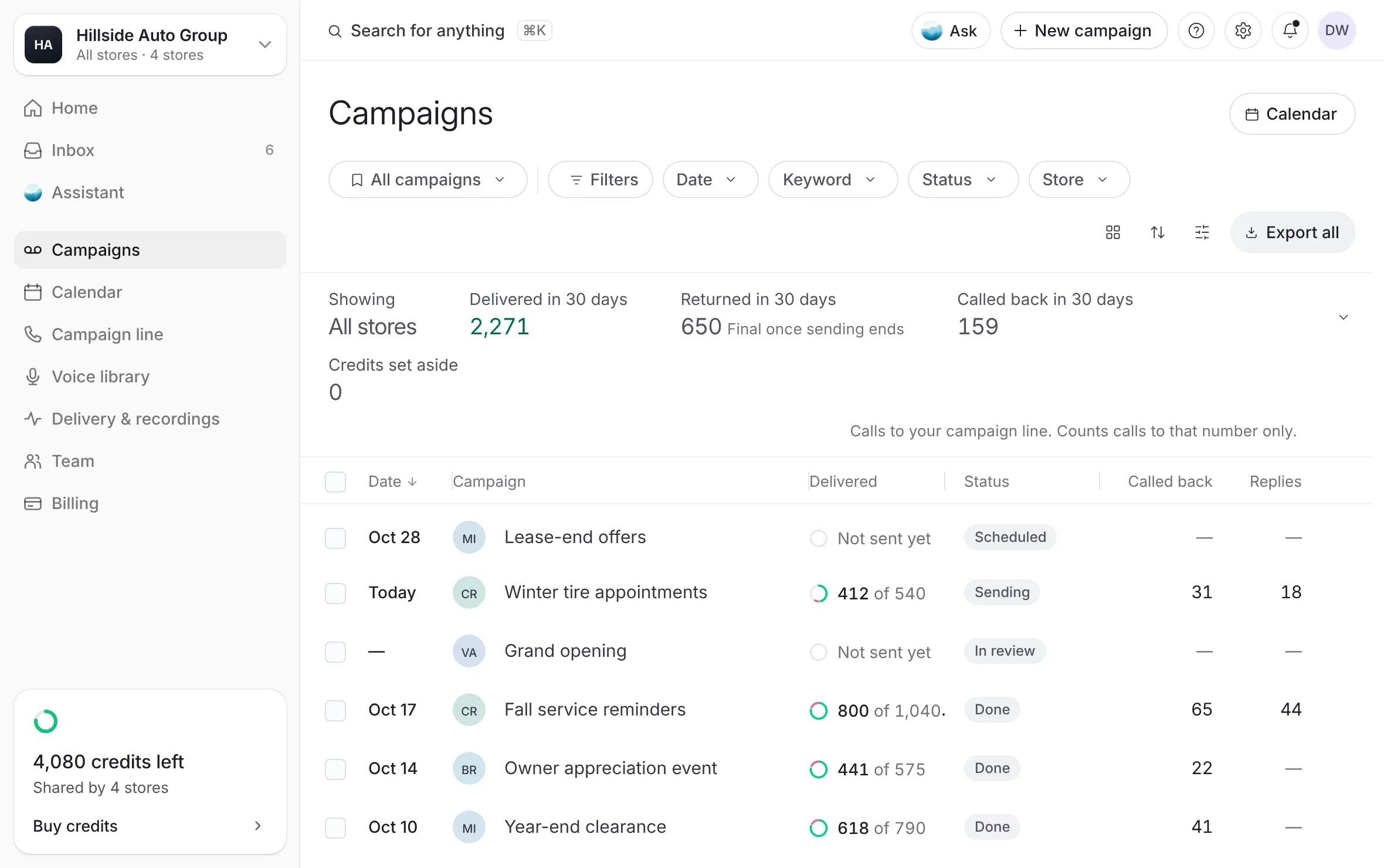 Example
What you see
one list of every store's campaigns, with a Store column, a Store filter and Group by to group them by store. The strip above the list reads Delivered in 30 days, Returned in 30 days, Called back in 30 days and Credits set aside, for every store together. Its line says "Calls to your campaign line. Counts calls to that number only."
Each campaign's date reads on its own store's clock.
Export all downloads the list. Once you filter, it reads Export filtered and downloads what the filters show.
Selecting a campaign opens it in its own store. The dashboard switches to that store first.
The calendar across every store
On All stores, select Calendar in the sidebar.
What you see
every store's campaigns on the month, each marked with its store's letters, and a Store filter beside the Status filter.
Selecting a campaign of a store opens it in that store.
Pages that belong to one store
The Assistant, Campaign line, Voice library, Delivery & recordings, New campaign, a campaign's own page, the setup steps and a store's business profile each belong to one store. Open one while All stores is open and the page asks Which store? instead.
Select the store you want.
What you see
that store opens on the page you asked for, and a message says "You've switched to" and the store's name. Back to All stores takes you back without choosing.
Team in the sidebar opens Members for the group's owner and its Admins. For a Member, it asks Which store? like any store page.
These pages stay as they are under All stores, because they are yours or the group's: your Profile, Notifications and Security, the group's Group and Members pages in Settings, the help pages and Getting started.
How All stores stays open
All stores stays open in the browser tab as you move between pages, reload, or go back and forward.
It ends when you choose a store: from the pill, from Which store?, from a row of the table, or by opening a campaign of one store.
A new tab opens on the store you last chose, not on All stores.
Good to know
All stores shows only the stores you can open. An Admin or Member given some stores sees those stores and their figures, nothing else.
It is a view, not extra access: every figure comes from stores you could open one by one.
The group's campaigns list has no leads column. Leads stay on each store's own Campaigns list.
Related
Last updated October 21, 2026
Was this helpful?