Your profile and your store's details
Your own name, mobile and province on your profile, and your business's name, industry, website and time zone on its profile.
Two pages hold your details. Your Profile is about you: your name, your mobile and your province. Your business's profile is about the business: its name, industry, website, time zone, campaign line and callback numbers.
Open your profile
Select your initials at the top right of the dashboard.
Select Profile.
You can also open Settings and select Profile under Personal.
What you see
your name as the page's title, with your level beside it, then Email, Name, Your mobile, Province and Page guides.
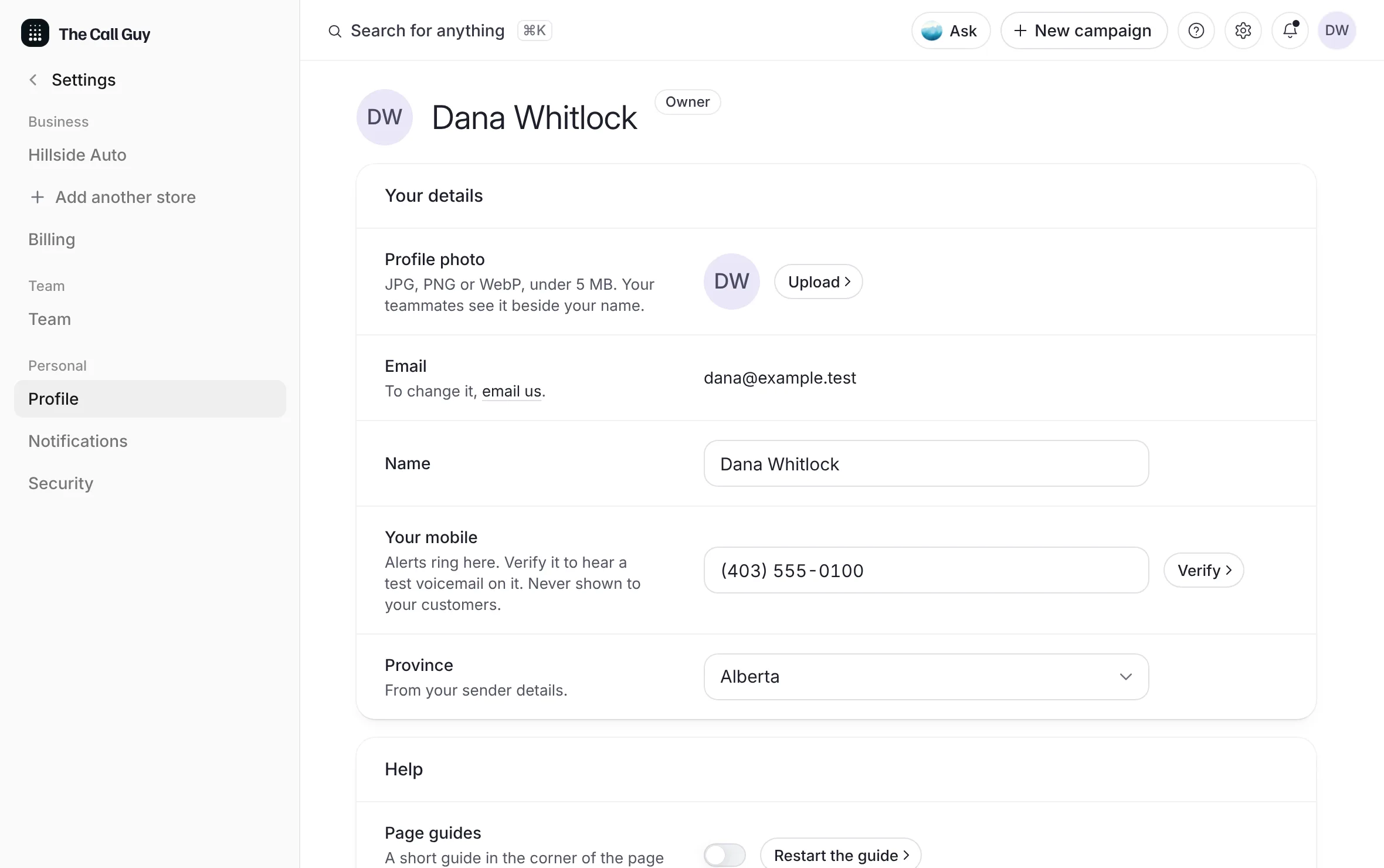 Example
Change your name, mobile or province
Select Edit under the row, or Add if it's empty.
Type your name or mobile, or choose your province or territory.
Select Save. Cancel leaves it as it was.
What you see
"Name updated.", "Mobile number updated." or "Province updated."
A mobile that isn't a full phone number is refused: "That doesn't look like a 10-digit phone number." To remove your mobile, clear the field and save.
Until you save a province, the row shows the one from your campaign line's sender details, marked "From your sender details."
Your email is shown but can't be edited here. See Change your sign-in email.
What your mobile is for
The page says your mobile is "Never shown to your customers."
Alert texts. When you choose Text for an alert in Notifications, the alert texts this number. See Alerts and the daily summary.
The test text. Send me a test text in Notifications texts this number.
The row also names test drops. A test voicemail to your own phone is coming. See A test voicemail to my own phone.
Page guides
A page guide is a short guide in the corner of a page until you've done its steps.
Use the Page guides switch to turn them off or on.
Select Restart the guide to see them again. The page says "The guide is back."
Open your business's profile
Select the pill at the top of the sidebar.
Select Business profile.
You can also open Settings and select your business's name under Business.
What you see
your business's name and these rows: Business name, Industry, Website, Province, Time zone, Campaign line and Callback numbers. A business whose setup isn't finished shows "Your setup isn't finished" with Finish setup at the top.
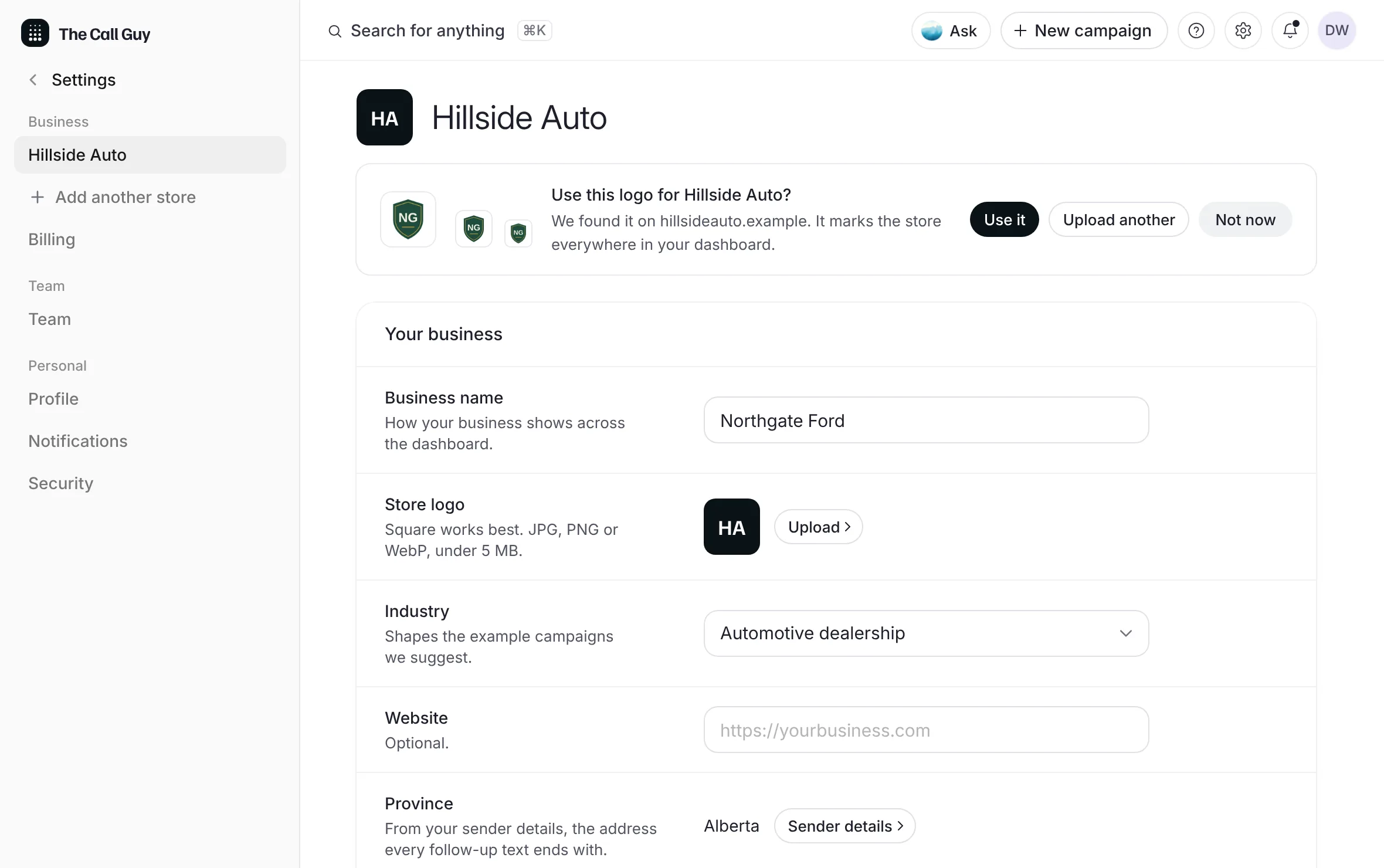 Example
What each row of the business profile does
| Row | What the page says it does |
|---|---|
| Business name | "How your business shows across the dashboard." |
| Industry | "Shapes the example campaigns we suggest." |
| Website | "Optional." |
| Province | "From your sender details, the address every follow-up text ends with." Change it in Sender details. |
| Time zone | "New campaigns go out on it, and every time on your pages reads in it." |
| Campaign line | "The caller ID on your voicemails and the sender of your follow-up texts." |
| Callback numbers | The phones a callback can ring, with one default. |
Change your business's details
You need to be the account owner or an Admin. A Member reads "Only admins can change the business's settings."
Select Edit on the row, or Add if it's empty.
Change the value.
Select Save.
What you see
a message that names what changed, such as "Business name updated."
The campaign line, the callback numbers and the province each have their own pages:
Good to know
Your name, mobile and province are yours alone. A teammate's profile is theirs to change.
In a dealer group, your profile says "Yours alone. It goes with you to every store you open." Each store has its own business profile, named Store name on the first row, with a Team row: "Who can open" the store, "and what each person can do." A store added from the dashboard also has a Store email row, where that store's mail goes. See Add another store.
/dashboard/settingsopens your profile too.The last row of a single business's profile adds another store. See Add another store.
Related
Last updated October 19, 2026
Was this helpful?