Ask the assistant
Ask about your account, or describe a campaign and build it together. The assistant prepares; you sign, and the team reviews.
The assistant answers questions about your account, and builds a campaign with you in a conversation. It reads, drafts and shows. It never sends, signs, buys or spends: you sign every campaign yourself, and the team reviews it before anything is sent.
Before you start
Your sign-in email must be confirmed. Until it is, the assistant answers with a note asking you to verify your email first. See Confirm your email.
You do not need credits to ask. Without credits, your day holds fewer messages. See How much you can ask in a day.
Hearing a script read in a voice, recording a voice and sending a campaign still need credits.
Open the assistant
Select Assistant in the sidebar.
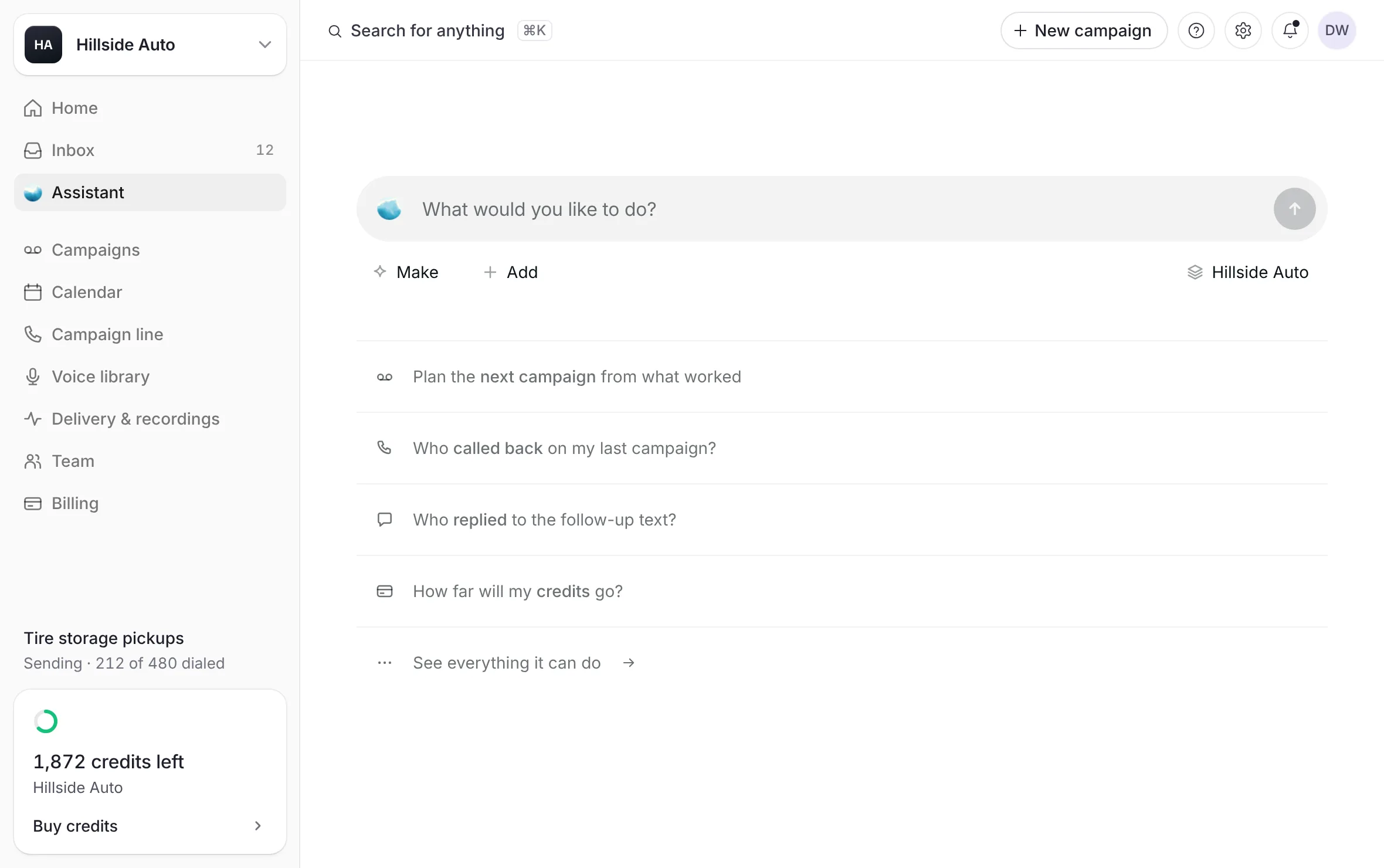 Example
What you see
a greeting with your first name, the box ("Ask anything"), and "Try one of these prompts out:" with a few starts. Under them: "The assistant is an AI. It prepares campaigns; you sign them, and the team reviews them before anything is sent."
The starts depend on your account. A new account sees Plan a campaign from a brief, Check a list before you use it and What can you do here?. Once you have campaigns, a start asks about your latest one, for example "How did" and its name.
Other ways in:
Ask the assistant on the Help page. A question typed in Search the answers goes with it.
Search for anything in the top bar: type a question, then select Ask the assistant and your words.
Ask the assistant in the corner of the campaign builder opens it beside the builder. It knows the campaign so far.
On a campaign's page, the assistant carries that campaign's name as a chip in the box. Select the chip's × to ask about something else.
Ask about your account
Type your question in the box.
Press Enter, or select Send (the arrow). Shift and Enter start a new line.
To stop an answer while it is coming, select Stop or press Escape.
What you see
the answer in the conversation. Figures show as the dashboard's own tiles and tables, with a door to the page they came from. "Read" and a count, above an answer, opens Activity: what the assistant read to answer.
It can read and show:
Your campaigns, one campaign, its results, or two or more campaigns side by side.
Who called back or replied to a campaign. Calls to your campaign line. Counts calls to that number only.
Your credit balance.
Your voices.
Where your setup stands.
Build a campaign together
Select Plan a campaign from a brief, or describe the campaign you want to run.
Answer its questions. It drafts scripts, and asks for each part of the campaign in a card in the conversation: the name, the list, the voice, the start time and the follow-up text. Each card uses the builder's own rules.
To give it your list, select Add a list (the paperclip) and choose the file, or drop the file on the box.
Select Campaign and the count over the conversation to open The campaign so far: the builder's steps, each ticked once it is set.
When everything is set, the review card shows the campaign. Type your name, sign, tick the authorization box, and select Send for review yourself. The list's card asks you to tick its permission line in the same way.
What you see
the step Sent for review, and Open the campaign in The campaign so far.
Asked for scripts, it writes one to three complete scripts, each whole on its own card with its follow-up text. Use this script on a card puts that script in your campaign, and the card then reads In your campaign.
Nothing the assistant writes can tick a box, type your name, sign or send. Those are your own presses.
Open in the builder, in The campaign so far or on a card, opens the same draft in the builder.
Sending a campaign needs credits, as it does in the builder. The team reviews it before anything goes out. See How the team reviews a campaign.
Check a list
Select Check a list before you use it, or select Add a list.
Choose your file.
What you see
one card with every issue it found, each with the builder's own fix: what blocks the campaign, what is worth fixing, and what was already left out.
The assistant reads only your list's counts and column names, as the builder read them in your browser. It never sees a contact.
Change a setting with the assistant
The assistant can show your setup and prepare a change: your callback numbers, the closing line of your follow-up texts, or your business profile.
Ask for the change.
Read the card it shows: what changes, from what to what.
Select the card's door to save it, for example Save callback numbers or Save the closing line. Select Not now to leave it.
Nothing is saved until you select the door. The change goes through the same rules as the page where you would make it by hand.
The assistant never buys, releases or re-routes a number. It sends you to the page that does.
Ask for a person
Ask the assistant for a person, and it prepares a request for the team: a card with its summary of what you want. The request goes only when you select Send to the team. See Get help from the team.
Talk instead of typing
When the round voice button is in the box, select Talk to the assistant to speak with it. Voice time counts toward your day. See How much you can ask in a day.
Your conversations
Your conversations are kept for you alone. A teammate sees only their own. Your newest 100 are kept.
Your conversations (the arrow at the top left) opens the list as a sheet. Select a conversation to open it again.
New conversation, at the top of that sheet or as the plus over a conversation, starts a fresh one.
To delete one, open its menu in the list and select Delete.
Good to know
The assistant is an AI. Read what it drafts before you use it, as you would anyone's draft.
A teammate can use the assistant on their own login. Billing stays with the account owner.
Related
Last updated October 19, 2026
Was this helpful?