The delivery overview
One page with your voicemails, follow-up texts and callbacks together, a chart by day, and the newest activity.
Delivery & recordings in the sidebar opens one page that holds everything your campaigns have sent and everything that came back: voicemails, follow-up texts and callbacks. Use it to see how your campaigns are doing at a glance, then open the full log you need.
Open the overview
Select Delivery & recordings in the sidebar.
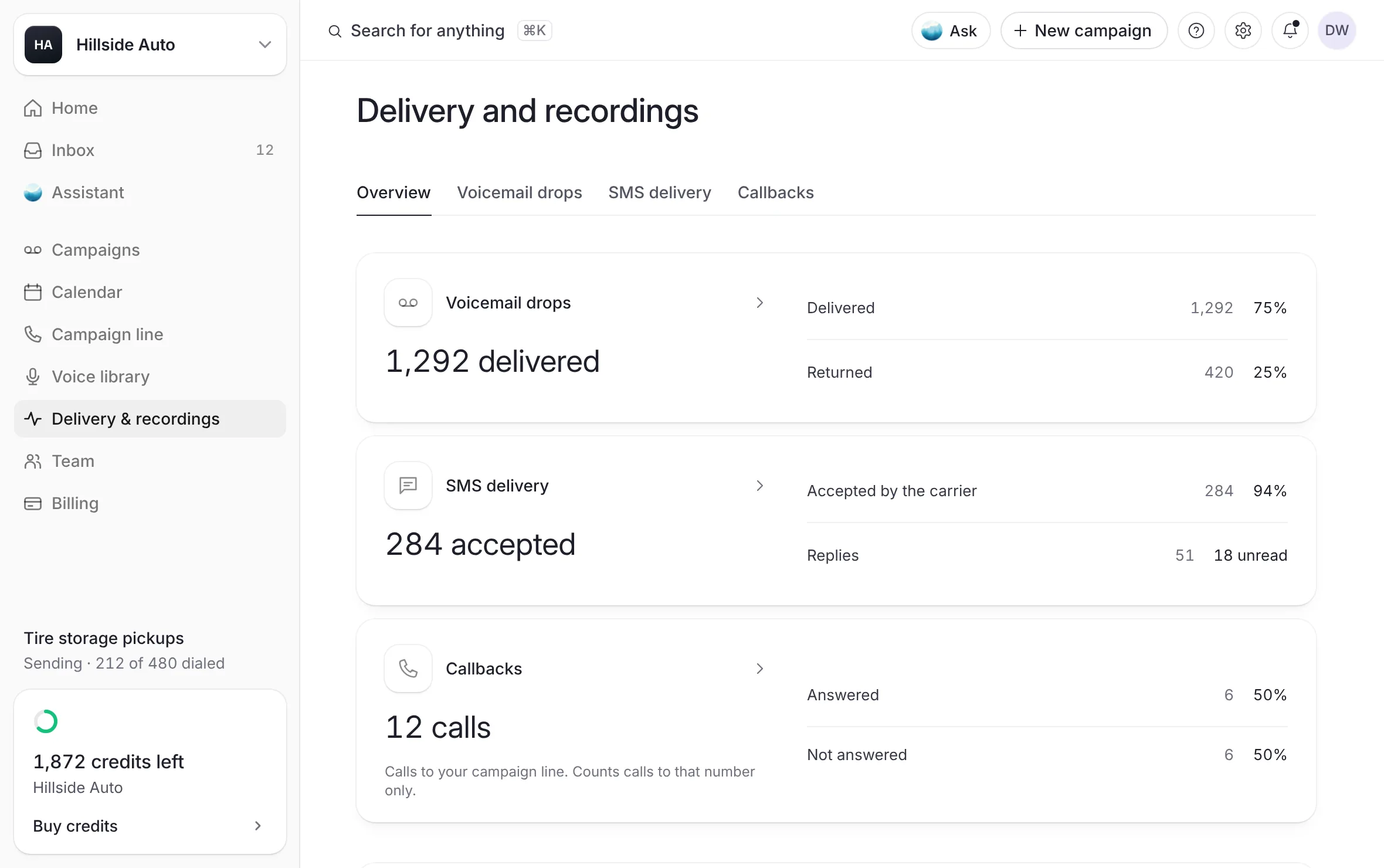 Example
What you see
the title Delivery and recordings, three cards, a chart titled Voicemails dialed, the breakdown of one day, and Recent activity.
Every seat on the workspace, owner, admin or member, has Delivery & recordings in its sidebar.
The three cards
Each card is a link to its own page. Under Delivery & recordings in the sidebar, the same three pages are listed: Voicemail drops, SMS delivery and Callbacks.
Voicemail drops: delivered and returned voicemails across every campaign, each with its share. See Every voicemail, and what each person heard.
SMS delivery: the follow-up texts Accepted by the carrier, with their share, and Replies, with how many are unread. See What became of each follow-up text.
Callbacks: the calls to your campaign line, Answered and Not answered. Under them: "Calls to your campaign line. Counts calls to that number only." See Callbacks.
Before you have a campaign line, the SMS delivery and Callbacks cards say No campaign line yet and link to Campaign line. See What the campaign line is.
Read the chart
Above the chart, choose a range: D (today), 7D, 15D or 30D. The page opens on 30D.
Select a day's bar to see that day in the breakdown under the chart.
What you see
bars split into Delivered and Returned, one bar a day (an hour on D). Voicemails dialed shows how many were dialed in the range. A caption under the chart says each day's figures in words.
A returned voicemail carries no time of its own. The chart puts a campaign's returned voicemails on the day it began sending (on D, the hour). The caption says so.
Campaigns that have not sent yet are named in the caption.
The day's breakdown
Under the chart, the selected day's campaign shows with how many it dialed and its delivered and returned shares.
Press play beside a person to hear their voicemail.
Select the link to all of that campaign's voicemails to open them in Voicemail drops.
What you see
a short table with Person, Result and Recording. A returned voicemail reads No recording and says no credit was used.
Recent activity
The newest moments across your campaigns and your line: a campaign beginning to send or finishing, its follow-up texts, every callback, and the replies people send you, newest first.
Type in the search box (Name, number or campaign) to find a person, a number or a campaign.
Narrow the list:
Activity: All activity, Voicemails, Texts or Calls.
Time: Last 24 hours, Last 7 days, Last 30 days or All time. It opens on Last 30 days.
Campaign: All campaigns, one campaign, or Not on a list for activity no campaign of yours matches.
Result: one status, such as Answered, Missed, Unread or Opted out.
Select Export CSV (the download button) to save every row your filters keep, not only the rows shown.
Select a row to open it.
What you see
a table with Activity, Status, Campaign and When. A campaign row opens its voicemails in Voicemail drops, a callback opens it on Callbacks, a reply opens its conversation, and a STOP opens your opted-out numbers.
On a phone
The overview keeps the same parts in a narrower order: the range and a campaign filter at the top, then Voicemails delivered, Returned and Texts accepted, the chart, one short summary each for Voicemail drops, SMS delivery and Callbacks, and the recent activity with All, Texts and Calls.
Good to know
Before your first campaign sends, the page says No voicemails sent yet, with New campaign.
When a figure cannot be read, the card says it is unavailable. It never shows a zero it does not know.
If your callbacks ring through a phone setup managed outside the dashboard, the Callbacks card still counts the calls, a few minutes after they end, and says "Calls show here a few minutes after they end." Only when the dashboard can't see a line's calls at all does the card say so instead of counting them.
Calls are never recorded.
Related
Last updated October 21, 2026
Was this helpful?