Callbacks
Every call back to your campaign line, matched to the campaign that reached the caller, with what happened to each call and who still needs a call back.
When someone calls your campaign line back, the dashboard logs the call and matches it to the campaign that reached them. This page shows where to read those calls, what each outcome means, and how to find the people who still need a call back.
Every callback figure in the dashboard counts calls to your campaign line, and nothing else: "Calls to your campaign line. Counts calls to that number only." A customer who calls your store's other numbers, or walks in, is not in these figures.
Before you start
Callbacks are logged on your campaign line. Without one, the page says Your campaign line comes first, with Set up your campaign line. See What the campaign line is.
Which phones a callback rings, one phone or a ring group, is set on your line. See Callback numbers and where calls ring and One phone, or a ring group.
How a call is matched
Someone calls your campaign line.
The line looks for the most recent campaign of yours that dialed their number. It counts even when their voicemail came back.
The call is logged under that campaign, with the name from your list. A caller none of your campaigns dialed is logged as Not on a list.
Calls are never recorded, and the line never takes a voicemail. Any voicemail a caller leaves is left on your own phone.
The forwarded call shows the caller's own number on your phone, so you know who is calling back.
When a ring group rings, the call is Answered once someone presses 1, and it shows the phone that took it. When nobody presses 1, it is Missed.
Open Callbacks
Select Delivery & recordings in the sidebar.
Select Callbacks, under it in the sidebar or in the tabs at the top of the page.
 Example
What you see
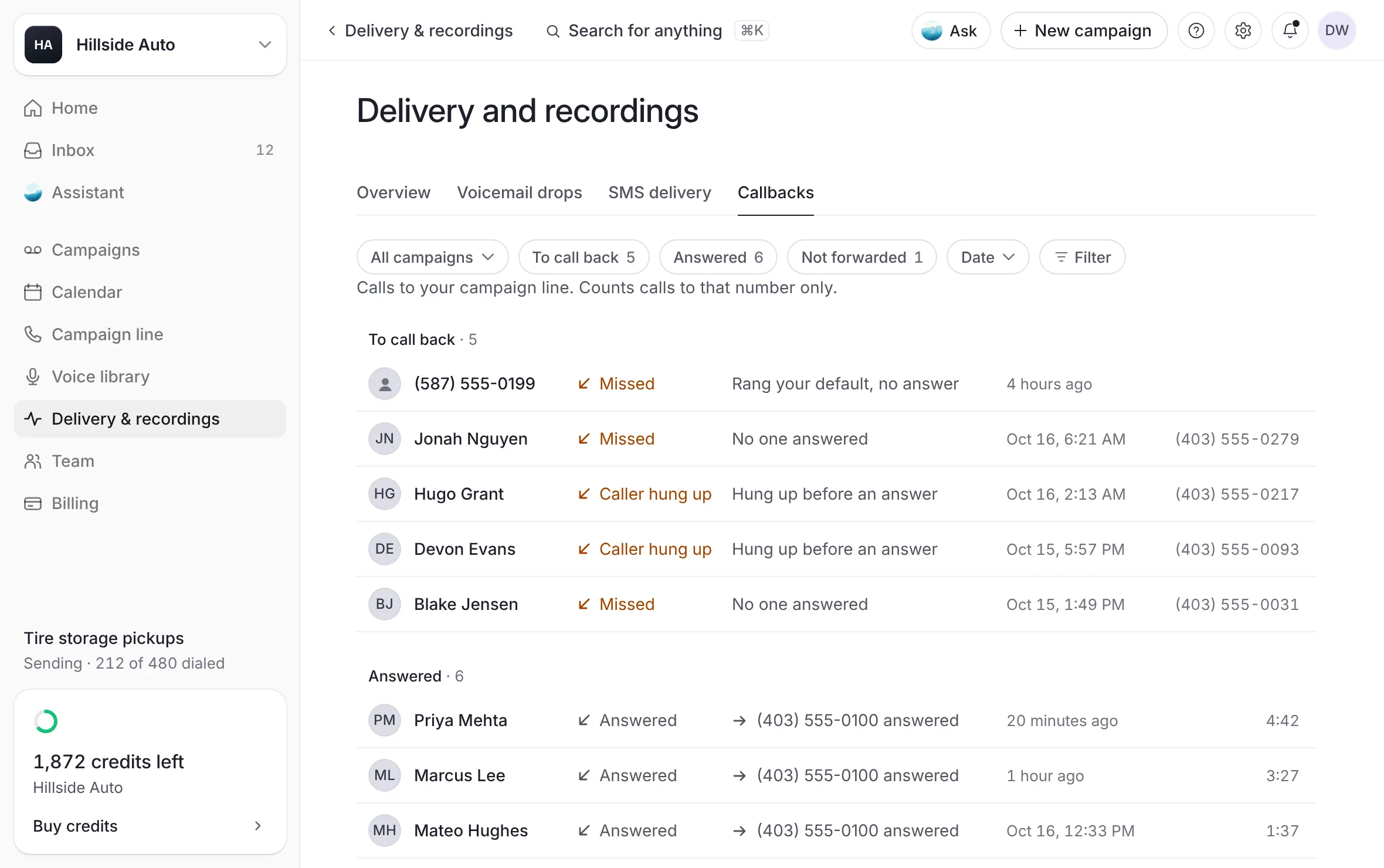
"Calls to your campaign line. Counts calls to that number only." Then one table with Caller, Outcome, Where it rang, Campaign, Length and When, in three groups: To call back, Answered and Not forwarded. The calls that need a person come first. Ringing now shows at the top only while a call is ringing.
What each outcome means
| Outcome | What it means | Group |
|---|---|---|
| Answered | Someone took the call. | Answered |
| Missed | The call rang a phone and nobody answered. | To call back |
| Caller hung up | The caller hung up before anyone answered. | To call back |
| Transfer failed | The call could not reach the phone it was sent to. | Not forwarded |
| No number to ring | No phone was set, or the line was paused. | Not forwarded |
| Ringing… | The call is ringing now. | Ringing now |
Where it rang says it in words, for example "Rang your default, no answer", "No one answered", "Hung up before an answer", "Did not reach" and the number, or the number that answered.
Narrow the calls
Select All campaigns to pick one campaign, or Not on a list for callers none of your campaigns reached.
Select To call back, Answered or Not forwarded to show one group. Each shows its count.
Select Date to choose Any time, Today, Last 7 days or Last 30 days.
Or select Filter to pick a campaign, a Date and an Outcome in one menu.
What you see
only the matching calls. When nothing matches, the page says No calls in this view, with Show every call.
Open one call
Select a row.
What you see
a panel with the caller's name (or number), then The call: Caller, Number, Campaign, What happened, Forwarded to, When and Length.
For a call to return, the panel says "No one picked up." (or "The call didn't reach your phone.") and to call them back from your own phone. Select their number to copy it.
Select the campaign's name to open that person on the campaign's page.
If the caller has also texted your line, select Open conversation to read it in the Inbox.
The dashboard never places a call. You call people back from your own phone.
One campaign's callbacks
Open the campaign from Campaigns.
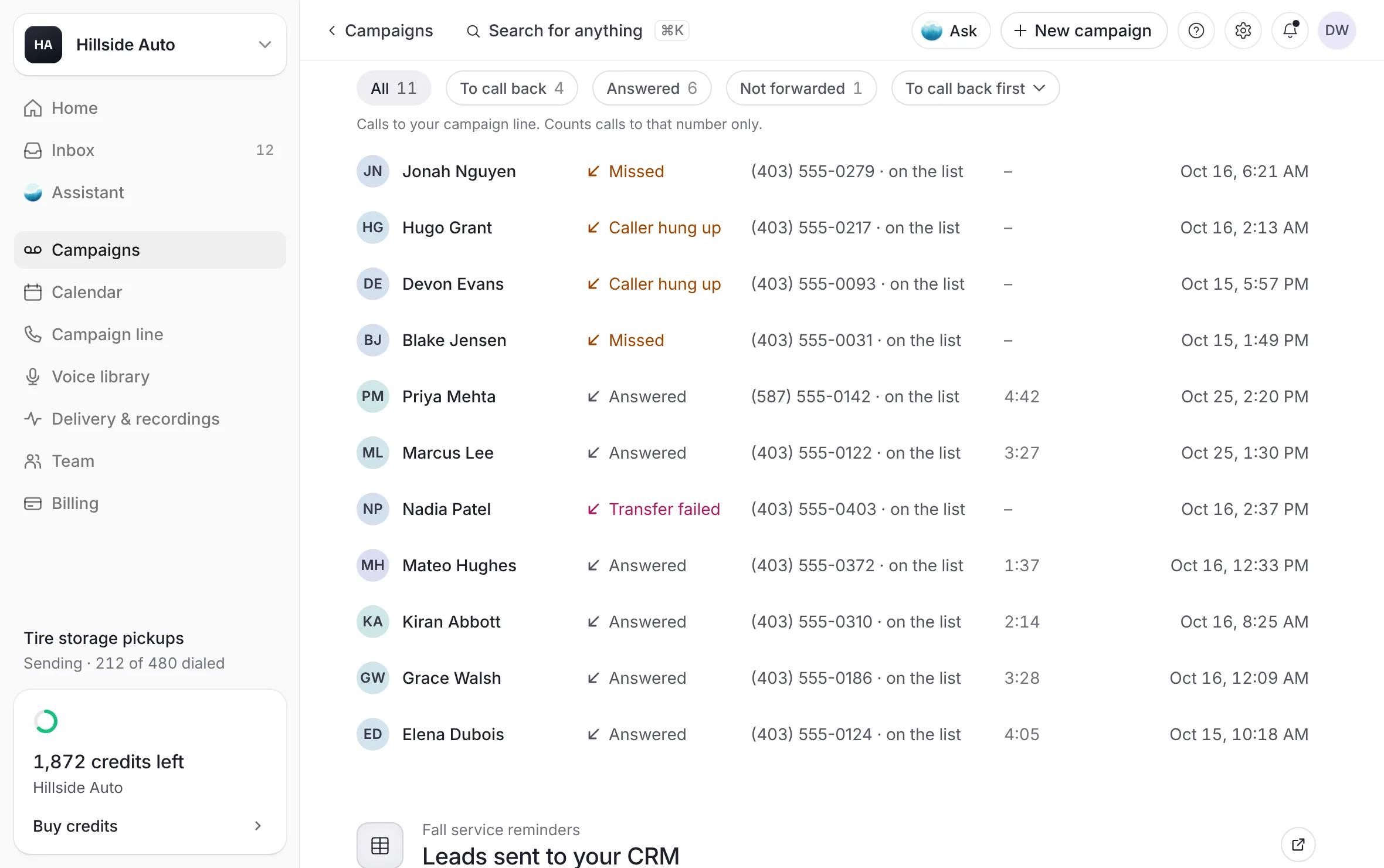
Scroll to Callbacks. The section shows for a campaign that went out on your campaign line. At the top of the page, the After the voicemail card counts how many called back, and the Campaign line card how many calls were answered.
 Example
What you see
chips for All and each group that has calls (To call back, Answered, Not forwarded), each with its count, and a menu that orders the calls To call back first or Newest first. Under them: "Calls to your campaign line. Counts calls to that number only." Then one row per call: the caller's name (or number), the outcome, where it rang, their number with "on the list" or "not on the list", the length of an answered call, and when.
Select a call to open it beside the list. The panel shows The call (When, Outcome, Length for an answered call, and Rang) and What came back from that contact: their voicemail's result, their follow-up text, and whether they called or wrote back.
For a call to return, the panel says "No one picked up." (or "The call didn't reach your phone.") and to call them back from your own phone. Select their number at the top of the panel to copy it.
If the caller also texted your line, select Open conversation to read it in the campaign's Follow-up texts. On a campaign with a message for each lead, Hear their voicemail plays what they heard once the recordings are released to you.
Step to the next or previous call with the up and down arrow keys (or J and K), or swipe on a phone.
Calls are never recorded, so no call has a play button.
On a phone, the calls show as cards by group, with To call back first.
When the campaign has no calls yet, the section says No callbacks yet, with Open inbox.
The rest of the campaign's page is in A campaign's page.
Good to know
Each person on the team can choose how they hear about a missed callback. See Alerts and the daily summary.
If your line sends leads to your CRM, a callback can become a lead. See Send leads to your CRM.
If your callbacks ring through a phone setup managed outside the dashboard, the page still lists and counts the calls, a few minutes after they end, and says "Calls show here a few minutes after they end." Only when the dashboard can't see a line's calls at all does the page say so instead of counting them.
When a callback did not ring the phone you expected, see A callback didn't ring.
Related
Last updated October 21, 2026
Was this helpful?