Your campaigns and the calendar
Find any campaign in the list or on the calendar, read its row, filter and sort, take a quick look, and export.
Campaigns lists every campaign your business has made, with its status, what it delivered and what came back. The Calendar shows the same campaigns on the days they go out. Open either one to find a campaign, then open the campaign for its whole story.
Open the list
Select Campaigns in the sidebar.
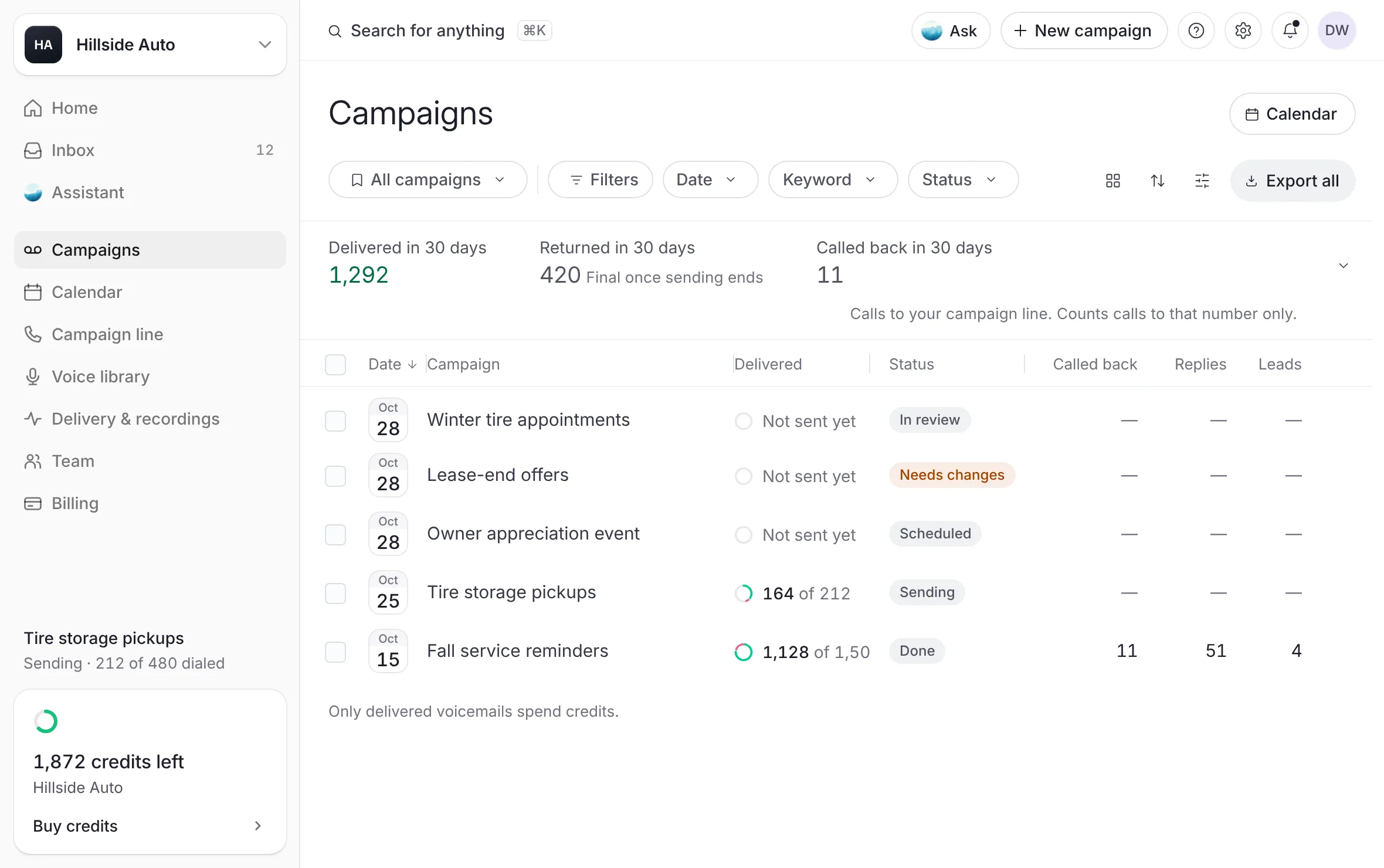 Example
What you see
The title Campaigns with a Calendar button beside it. Under it, a bar of filters, three totals, and a table of your campaigns, newest first.
With no campaigns yet, the page shows No campaigns yet, a line on how campaigns work, New campaign, and Book a walk-through to go through the dashboard with the team.
The totals
The strip over the table holds three totals:
Delivered in 30 days: voicemails that reached a voicemail box.
Returned in 30 days: voicemails that could not be delivered. While a campaign is still sending, Final once sending ends stands beside it: a voicemail still waiting on the carrier is not counted yet.
Called back in 30 days: calls to your campaign line. Counts calls to that number only. This total shows only when you have a campaign line.
Select Show the graph, the arrow at the strip's right end, to see the days as a graph.
Read a row
| Column | What it shows |
|---|---|
| Date | The day it went out, or the day it is set for, on your business's clock. |
| Campaign | Its name. Select the name to open the campaign's page. |
| Delivered | Delivered out of dialed, or Not sent yet. |
| Status | Where the campaign stands. See What each status means. |
| Returned | Dialed less delivered, once dialing has stopped. |
| Called back | Calls to your campaign line from this campaign. Counts calls to that number only. |
| Replies | Replies to the follow-up text. |
| Leads | Callbacks and replies sent to your CRM as leads. |
Under the table, a line repeats: "Only delivered voicemails spend credits." A cell with nothing to count shows a dash. On a narrow window the table drops the columns you need least, so it never scrolls sideways.
Choose a view
Select the first chip in the filter bar. It names the view you are on, All campaigns to start.
Choose a view:
All campaigns, Sent or Not sent.
Needs you: a change was asked for, it is on hold, or it waits on credits.
Live: approved and on its way, from production to its last voicemail.
Waiting on review: uploading or in review.
Done: finished or stopped.
Archived: shows once you have archived a campaign.
Filter, group and sort
Filters opens every filter in one panel.
Date: under Show campaigns for, choose Any time, Last 30 days, Last 90 days, This year, Upcoming or Custom. With Custom, set From and To.
Keyword: type in Search campaign names, or tick campaigns by name.
Status: choose Any status, In review, Needs changes, Scheduled, On hold, Sending or Done.
Group by: None or Status.
Sort: by Date, Campaign name, Delivered, Returned, Called back, Replies or Leads, then New to old or Old to new.
Display: show the graph, and choose the columns to show.
The page keeps your view, filters and sort in its address. A reload, or Back from a campaign, brings you to the same list.
Take a quick look
Select the round arrow at the end of a row, or the row itself.
What you see
A side panel with delivered out of dialed, when it went out or is set for, then Delivered, Dialed, Returned, Called back, Replies, CRM leads and On the list. Beside the callbacks: Counts calls to that number only.
Select Open campaign for its full page, or Copy link to copy its address.
Press Esc to close the panel.
Export the list
Export all downloads the campaigns shown as
campaigns.csv: Campaign, Status, Date, Contacts, Dialed, Delivered, Returned, Called back and Replies, plus Leads when your line sends leads to a CRM. A figure the list does not hold is left blank.To export some campaigns only, tick their rows, then select Export in the bar that appears.
To download one campaign's results, contact by contact, use its own page. See A campaign's page.
Act on several campaigns
Tick the box at the start of each row you want, or the box in the header for every campaign shown.
In the bar that appears, choose:
Export: download the ticked campaigns.
Archive: hide finished campaigns from your list on this device. Undo puts them back.
Re-run: start a new draft from one ticked campaign. See Run a campaign again.
Archiving changes nothing about the campaign: it still counts in your totals and opens from its link. Only a finished or stopped campaign can be archived. Open the Archived view and select Unarchive to bring one back.
A draft in progress
A campaign you started in the builder and did not submit sits at the top of the list with a Draft tag. Select it to carry on, or open its menu for Continue and Delete draft.
The calendar
Select Calendar in the sidebar, or the Calendar button beside the Campaigns title.
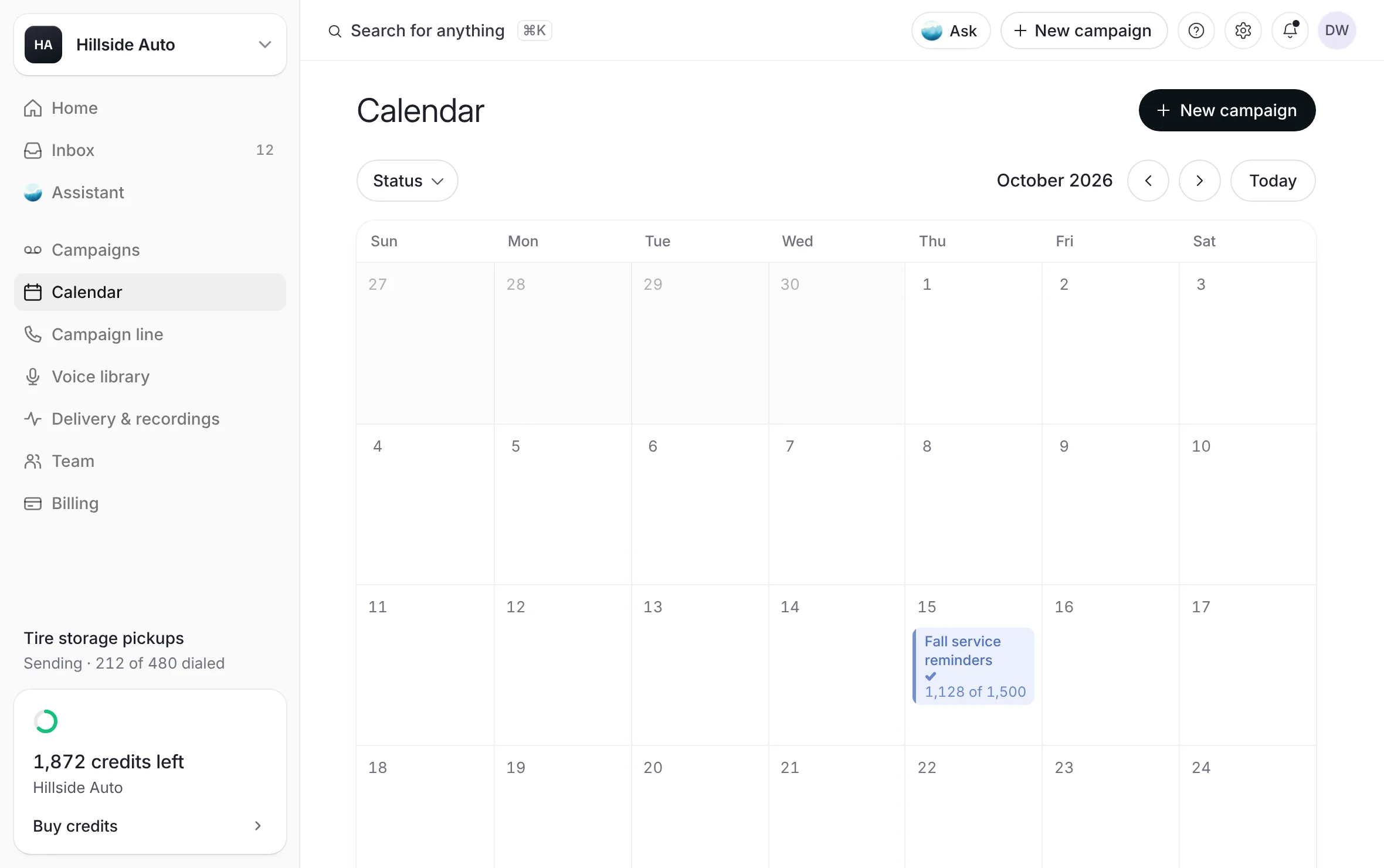 Example
What you see
The month, with each campaign on the day it goes out and its status.
Move between months with Previous month and Next month. Today comes back to this month.
Narrow the calendar with Status: tick In review, Needs changes, Scheduled, On hold, Sending or Done.
Select a campaign to see its status, its voice, its message and what it delivered, then select Open the campaign.
Select a day to see every campaign on it.
New campaign at the top of the calendar opens the builder.
On a phone
The Date button and the Filters button sit at the top.
The totals show as headlines.
All, Sent and Not sent switch the list.
Tap a campaign to open its page. The round arrow opens its quick look.
Good to know
In a dealer group, All stores adds a Store filter and column. See All stores at a glance.
Each view says what belongs in it when it is empty.
Related
Last updated October 19, 2026
Was this helpful?