What the campaign line is
The Canadian local number your campaigns use. It shows on your voicemails, sends the follow-up text, rings your phone when a customer calls back, and matches every call and reply to its campaign.
Your campaign line is a Canadian local number that belongs to your account. Your voicemails show it as the caller ID, your follow-up texts go out from it, and when a customer calls or texts it back, the dashboard matches them to the campaign that reached them.
What the number does
The number builder names its three jobs:
The caller ID on your voicemails
The sender of your follow-up texts
Rings where you choose when a customer calls back
When a customer calls the line, it rings a phone you choose, and that phone shows the customer's own number. When a customer texts the line, the conversation lands in your Inbox, and your answers go out from the same number. See Callback numbers and where calls ring and The Inbox.
Each call and each reply is matched to the most recent campaign that dialed that person. A campaign counts even when no voicemail could be left. A caller who is on none of your lists still gets through: the call rings your default callback number. The callback figures follow the line: "Calls to your campaign line. Counts calls to that number only."
Open your campaign line
Open Campaign line in the sidebar.
What you see
Your campaign line, with Open inbox at the top and four tabs: Your line, Callbacks, Activity and Calls and texts. The workspace owner also sees Add a number at the top.
Your line: the number, its state, today's texts and callbacks, and every number on the line. See below.
Callbacks: the phones a callback can ring, and your ring groups. See Callback numbers and where calls ring, One phone, or a ring group and Check a phone, and send a test call.
Activity: every call and text on the line, newest first. See Your line's activity.
Calls and texts: the line's settings. See The line's settings below.
If you have no number yet, the page shows No number yet with Get a number. See Get a number.
Read the Your line tab
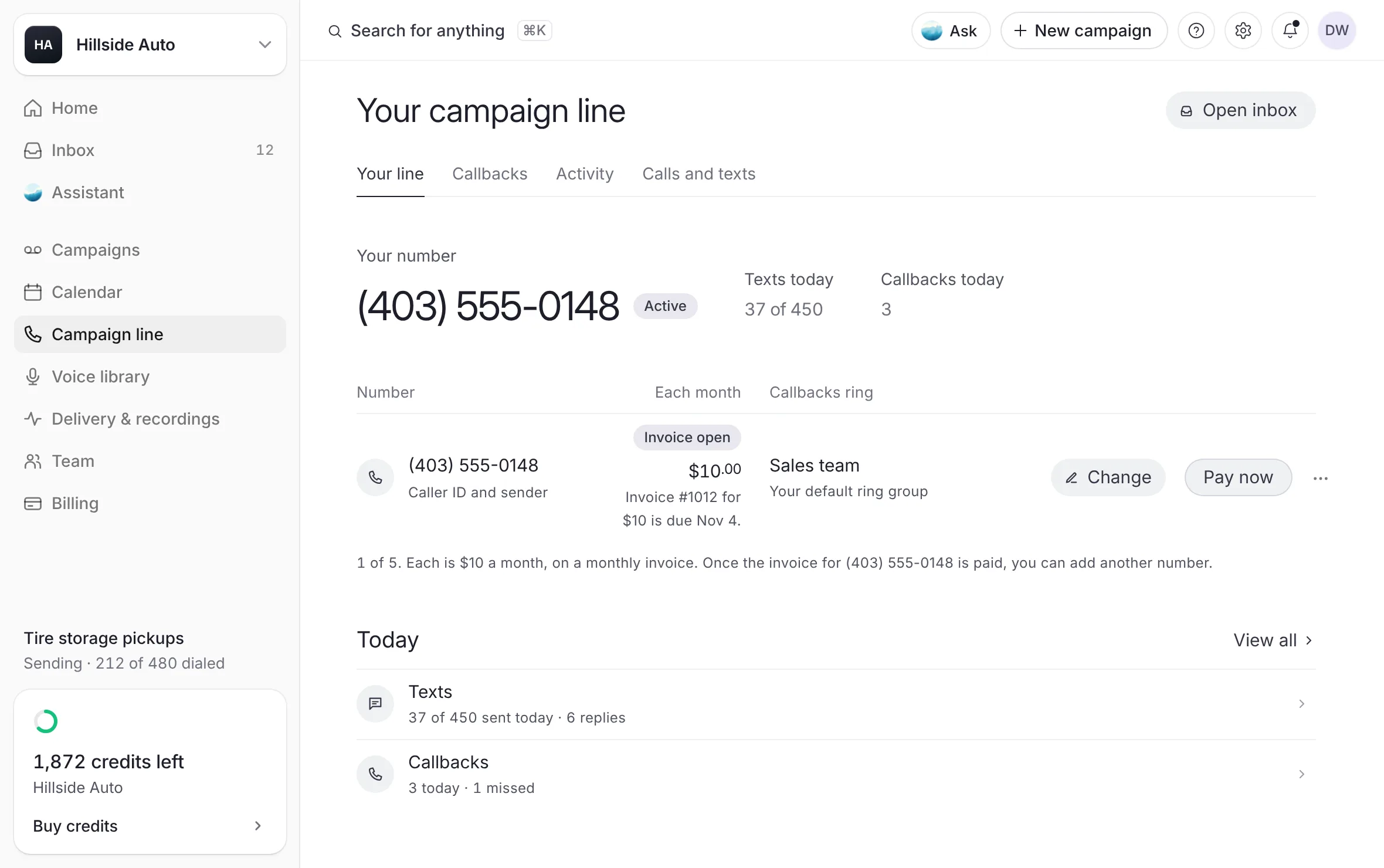 Example
Your number shows the number in large type. Select it to copy it: a number in the dashboard is copied, never dialed. The tag beside it says the line's state: Active, Setting up, Paused or Released.
Texts today shows how many follow-up texts the line sent today, out of its daily limit. Each active number on the line adds to that limit.
Callbacks today counts today's calls to the line. Counts calls to that number only.
The numbers table has three columns:
Number: the number, with its role under it. Caller ID and sender marks your main number. Also on your line marks the others.
Each month: the month's billing state for that number. See Paying for your campaign line.
Callbacks ring: what a callback rings when no campaign chose its own. Under it, Your default callback number, Your default ring group when a ring group is your default, or This number's own when that number has a phone of its own. Nobody yet with A callback hears a short message means no phone is set. The workspace owner and admins see Change or Set up here.
Today has two rows: Texts (sent today, and the replies) and Callbacks (today's calls, and how many were missed). View all opens the Activity tab.
The line's settings
The Calls and texts tab holds the line's settings, in four groups:
Calls: Send callbacks to, Test call and Language on the line. See Callback numbers and where calls ring and Check a phone, and send a test call.
Texts: Text alerts, Alerts for each person and Sender details. See Alerts and the daily summary and Sender details.
Send leads to your CRM. See Send leads to your CRM.
Opted-out numbers. See Opt-outs.
Each setting opens in its own window with Cancel and Save.
Choose the language on the line
On Calls and texts, find Language on the line and select Edit.
Choose English or Français.
Select Save.
The language covers the line's spoken messages and the replies you send. The automatic STOP and HELP answers were set when the number was chosen. Each campaign picks the language of its own follow-up text.
Who can do what
| Workspace owner | Admin | Member | |
|---|---|---|---|
| See every tab and setting | Yes | Yes | Yes |
| Change the line's settings | Yes | Yes | No |
| Get, add, pay for or release a number | Yes | No | No |
A member sees An admin can change these settings. at the top of Calls and texts, and no Edit buttons.
For a store in a dealer group, the group's owner can also get, pay for and release the store's numbers. See What a dealer group is.
When the line is paused
While the line wears the Paused tag, a callback hears a short message instead of ringing your phone, and follow-up texts wait.
If the last number was released, the owner sees Choose a new number. A new number brings the line back.
If the line was paused with a number still on it, select Write to us to ask the team behind The Call Guy to turn it back on.
If every tab shows The campaign line isn't on for this workspace yet., select Write to us to ask the team to turn it on.
Good to know
Every number on the line is a Canadian local number.
The line never records a call and never takes a voicemail. Your own phones do that.
The number's monthly price is separate from your credits. Credits pay for delivered voicemails; the follow-up text is included with the voicemail's credit. See How credits work.
In the campaign builder, Campaign line is a menu of your line's numbers. A campaign always shows one of them, so every call back comes through your line and into the callback figures.
Related
Last updated October 19, 2026
Was this helpful?