Your setup checklist
The task list in the corner of the dashboard and on Getting started, what each task asks, and when it ticks itself.
Your setup checklist is a short list of tasks that gets your account ready for its first campaign. Each task is read from your account and ticks itself once it is done. You find it in two places: in the corner of the dashboard, and on the Getting started page.
Before you start
The checklist is for the account's own login. A teammate's login does not show it. A dealer group's owner sees it on a store that is not set up yet.
Open the checklist in the corner
On a computer, a round button with a map icon sits in the bottom-right corner of the dashboard's pages.
Select the round button in the corner.
What you see
Get started with The Call Guy, how many tasks are done, and one row for each task. A finished task shows a check.
Select a task's row to go to the place where you do it. The list folds as you leave.
To fold the list, select the corner button again (it shows an ×), select the chevron beside the title, or press Escape.
On a phone, the checklist is a bar at the foot of the page that reads Get started with the count. Tap it to raise the list. Tap the chevron or the page above it to lower it.
The list arrives folded. It opens by itself once: when you land on the dashboard after the setup.
It stays out of the way on the full-screen pages (the campaign builder, the business profile, getting a number, setting up callbacks), on a dealer group's own pages and on the Getting started page.
Open the Getting started page
Select Help in the top bar.
Select Getting started.
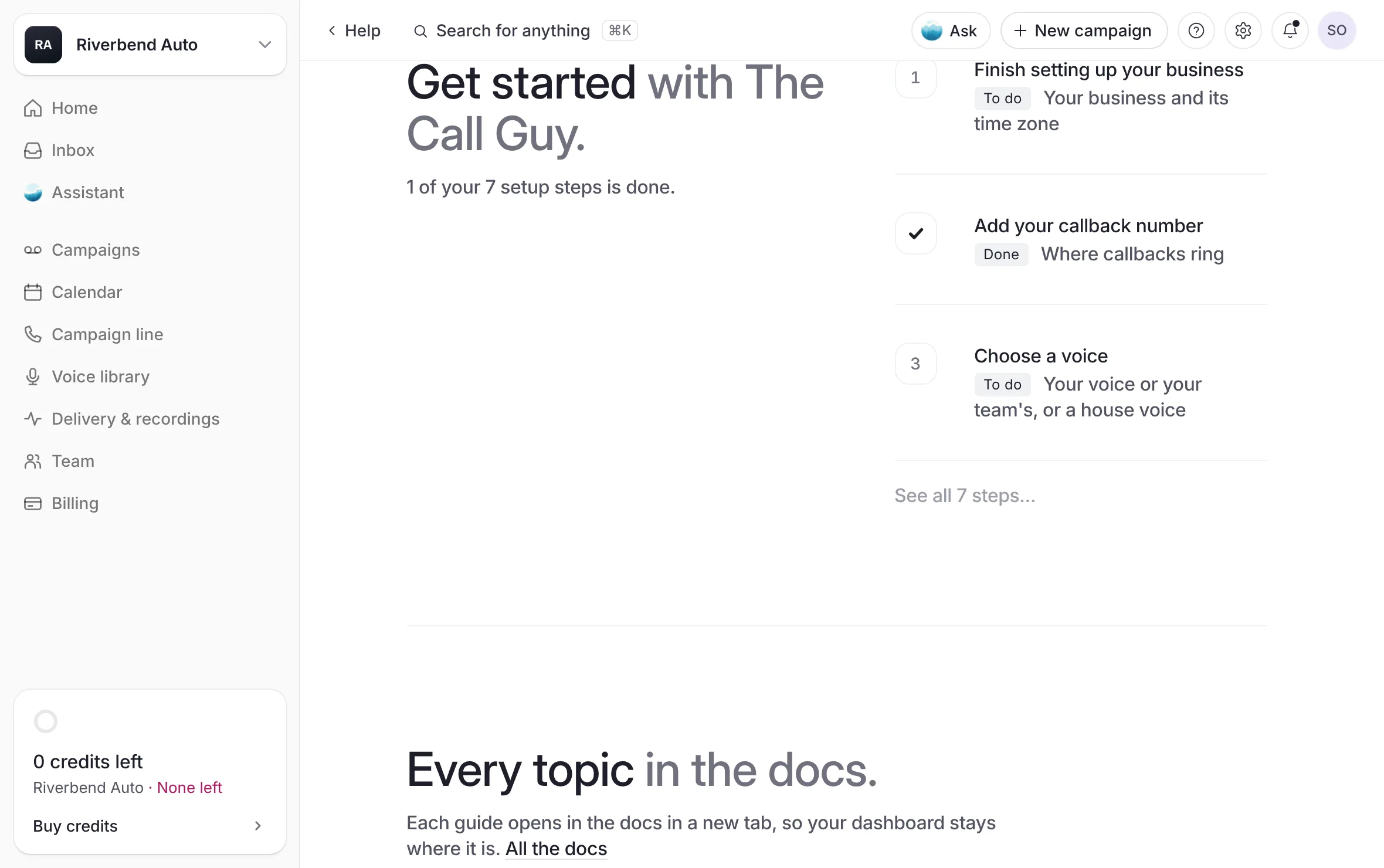 Example
What you see
Getting started, with "Send your first campaign, and find your way around the dashboard." Under it, Set up your account with the count, and every task as a numbered row with one sentence. The next task carries a black door. The others are links, and a finished one shows a check.
The page always lists every task, even when the corner list is hidden. When every task is done, its heading reads Your account is set up. The rest of the page is in How a campaign runs and Find your way around.
The tasks
The list shows only the tasks that apply to your account, in this order.
| Task | Shown | Ticks when | Where it opens |
|---|---|---|---|
| Finish setting up your business | While the setup is not finished | A business name, an industry, a time zone and a callback number are saved | The setup, at the first step not done |
| Set your time zone | When the setup was finished without a time zone | A time zone is saved | Your business's page in Settings |
| Add your callback number | Always | Your business has a callback number | Your business's page in Settings |
| Choose how calls ring | When you have a campaign line | A ring group is saved, or a phone passed its check call | Your line's callback setup |
| Say who your texts are from | When you have a campaign line | Your sender details are complete | The campaign line's settings |
| Choose a voice | Always | You have a voice of your own, or a campaign carries a voice | Voice library |
| Add credits | To the login that pays | Credits are on your balance | Billing |
| Launch your first campaign | Always | Your first campaign is submitted | New campaign |
| Add your other dealerships or Add your other locations | When you answered Several at sign-up, once the setup is finished | Your account becomes a dealer group | Your business's page in Settings |
| Invite your team | Always | A teammate has joined | Team, with the invite open |
| Confirm your email | While your sign-in email is not confirmed | Your email is confirmed | Settings, Security |
On the Getting started page, the next task's door has its own name: Finish setup, Set your time zone, Add a number, Choose how calls ring, Add sender details, Choose a voice, Add credits, Start a campaign, Add another location, Invite your team or Confirm your email.
What each task's sentence says, and where to read more:
Finish setting up your business: "Your business and your time zone. Every campaign reads them." See Set up your business.
Set your time zone: "Campaigns go out on your business's own clock, inside regulated calling hours." See Your business's time zone.
Add your callback number: "The number your voicemails ask people to call back. Keep more than one; one is the default." See Callback numbers and where calls ring.
Choose how calls ring: "When someone calls your campaign line back: one phone rings, or a group rings all at once or in order." See One phone, or a ring group.
Say who your texts are from: "Your business name and mailing address end every follow-up text." See Sender details.
Choose a voice: "Yours, your team's, or a house voice. Record your own, or pick a house voice in your first campaign." See Record your own voice.
Add credits: "Credits are prepaid. One is spent only on a delivered voicemail, and they never expire." See Buy credits.
Launch your first campaign: "Pick a list, write the script and choose a voice. The team reviews it before anything goes out." See Send your first campaign.
Add your other dealerships or Add your other locations: "Run each of your other locations from this same login. Each one gets its own short setup." See Add another store.
Invite your team: "Invite the people who run outreach with you. Billing stays with the account owner." If an invite expired before anyone joined, the task reads Resend an expired invite and opens Team. See Invite your team.
Confirm your email: "Confirm the email you sign in with, so the account stays yours." See Confirm your email.
When everything is done
What you see
the list opens once and says You're all set, with "Every task is done. This list folds away now." Then the corner button leaves.
If a new task appears later, for example Say who your texts are from after you get a campaign line, the corner button comes back.
Hide the checklist
Open the list in the corner.
Select Hide the list, beside "Don't need the list?".
What you see
a note, "Setup list hidden. Bring it back in Settings.", with Undo.
To bring it back:
Open Settings, then Profile.
Turn Page guides on ("A short guide in the corner of the page until you've done its steps."), or select Restart the guide.
Good to know
If the dashboard cannot read something a task needs, it leaves that task out rather than guess. The list never says a task is not done because of a failed read.
Finish setting up your business, Set your time zone and Confirm your email stay on the list, ticked, after you finish them, until you reload the page.
Related
Last updated October 19, 2026
Was this helpful?