A campaign's page
Everything one campaign's page holds, from its delivery and what came back to every contact, the follow-up texts, the callbacks, the CRM leads, the details, the trail and the export.
Each campaign has a page of its own. It shows where the campaign stands, what it delivered, everyone on its list, and everything that came back on your campaign line. Open it from the campaigns list, the calendar, a campaign email or an alert.
Open a campaign
Select Campaigns in the sidebar.
Select the campaign's name in the table.
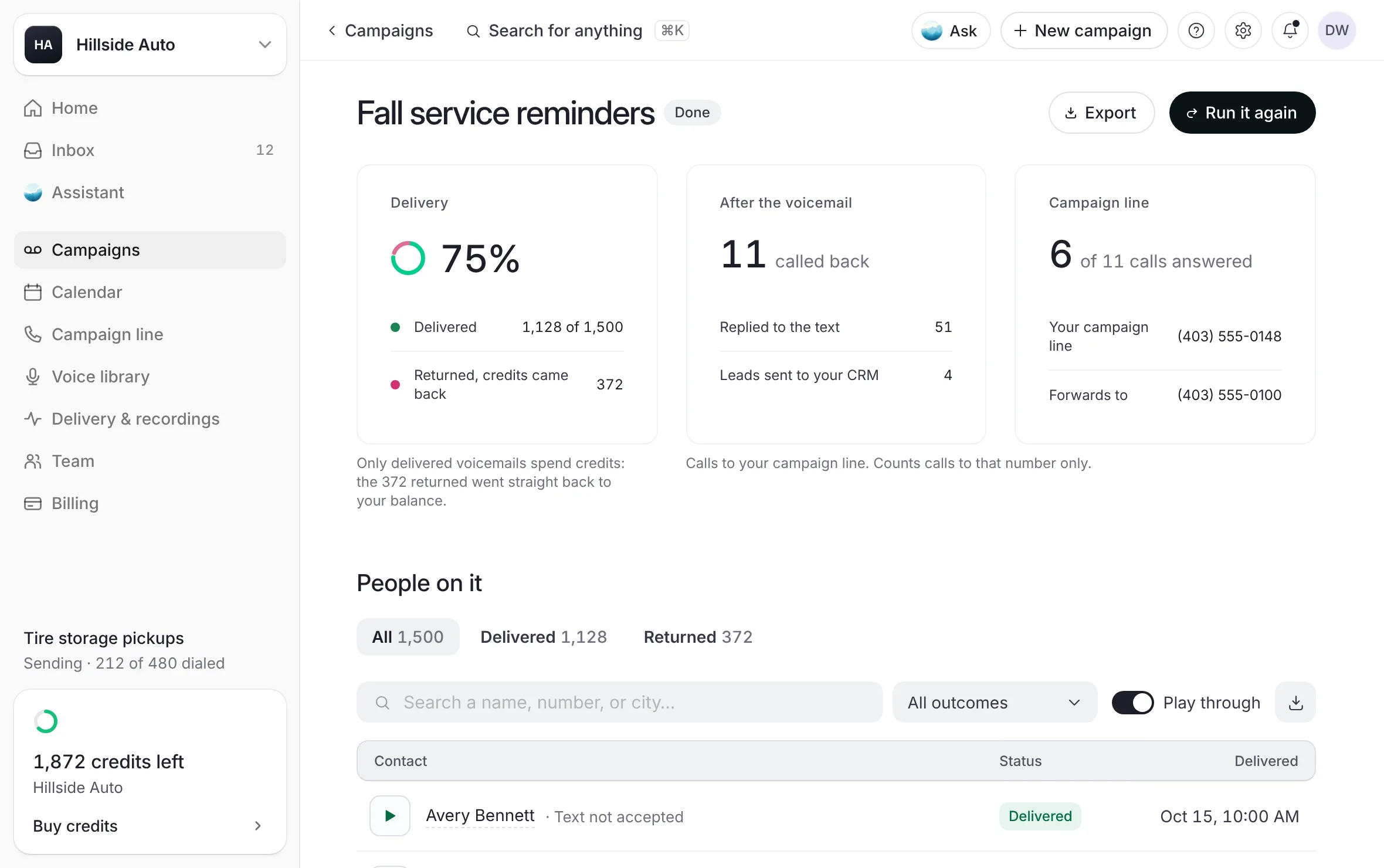 Example
You can also open it from the calendar with Open the campaign, or from its quick look with Open campaign.
The page runs from top to bottom: the head, the state's own card while nothing has gone out, the summary, People on it, Follow-up texts, Callbacks, Leads sent to your CRM and Details. A section shows only when the campaign has it.
The head
What you see
The campaign's name and its status, such as In review, Scheduled, Sending or Done. See What each status means.
Two buttons sit beside the name once they apply:
Run it again, once the campaign is Done or Stopped. See Run a campaign again.
Export, once something has gone out. See Export the results.
The state's own card
Before anything goes out, the page shows a card for where the campaign stands:
In review: Our team is reviewing it, a checklist of your list, the voice, the message and your signature, and Our review in progress. See How the team reviews a campaign.
Needs changes: One change before it goes out, with our team's note on the part it is about. See Change or cancel a campaign.
On hold: the hold, who holds it and why. See Why a campaign is on hold.
In production or Scheduled: The schedule, with the contacts, the start, the list, the voice and the credits it can spend. See Change or cancel a campaign.
The review, change and schedule cards carry Where it is, a short timeline, and a way to ask the team.
The summary
Once the first contact is dialed, cards sum the campaign up.
What you see
Delivery, with the share of dialed voicemails that were delivered. While the campaign sends, it reads "of those dialed so far".
The Delivery card's rows:
Delivered: how many voicemails were delivered, out of the list. Select the figure to go to People on it.
Returned, credits came back: voicemails that could not be delivered. They cost nothing.
Waiting on a receipt: dialed voicemails whose result has not come back yet. It shows only while there are some.
Left to send: while the campaign sends, the contacts not dialed yet. A campaign that finished with contacts never dialed shows Not sent instead.
Under the card, one line says "Only delivered voicemails spend credits", with how many returned voicemails went straight back to your balance.
When the campaign uses your campaign line, two more cards follow:
After the voicemail: how many people called back. Under it, Replied to the text when the campaign sent a follow-up text, and Leads sent to your CRM when your line sends leads to a CRM. Select a figure to go to its section.
Campaign line: how many of the calls to your line were answered. Under it, Your campaign line and Forwards to, the phone a callback rings. Select a number to copy it.
Under those two cards: "Calls to your campaign line. Counts calls to that number only."
Without a campaign line, the second card is The voicemail: the voice, the Message mode and the List.
If your line's calls are routed through a phone setup outside the dashboard, Callbacks ring reads "Your own phone setup". Its calls still show and count here, a few minutes after they end, and the cards say so: "Calls show here a few minutes after they end." Only when the dashboard can't see a line's calls at all do the cards say "Callbacks aren't tracked here."
While the campaign sends or is paused, a row of steps sits under the cards: Submitted, In review, Scheduled, Sending and Done, each marked done, now or to come.
People on it
People on it lists every contact on the campaign.
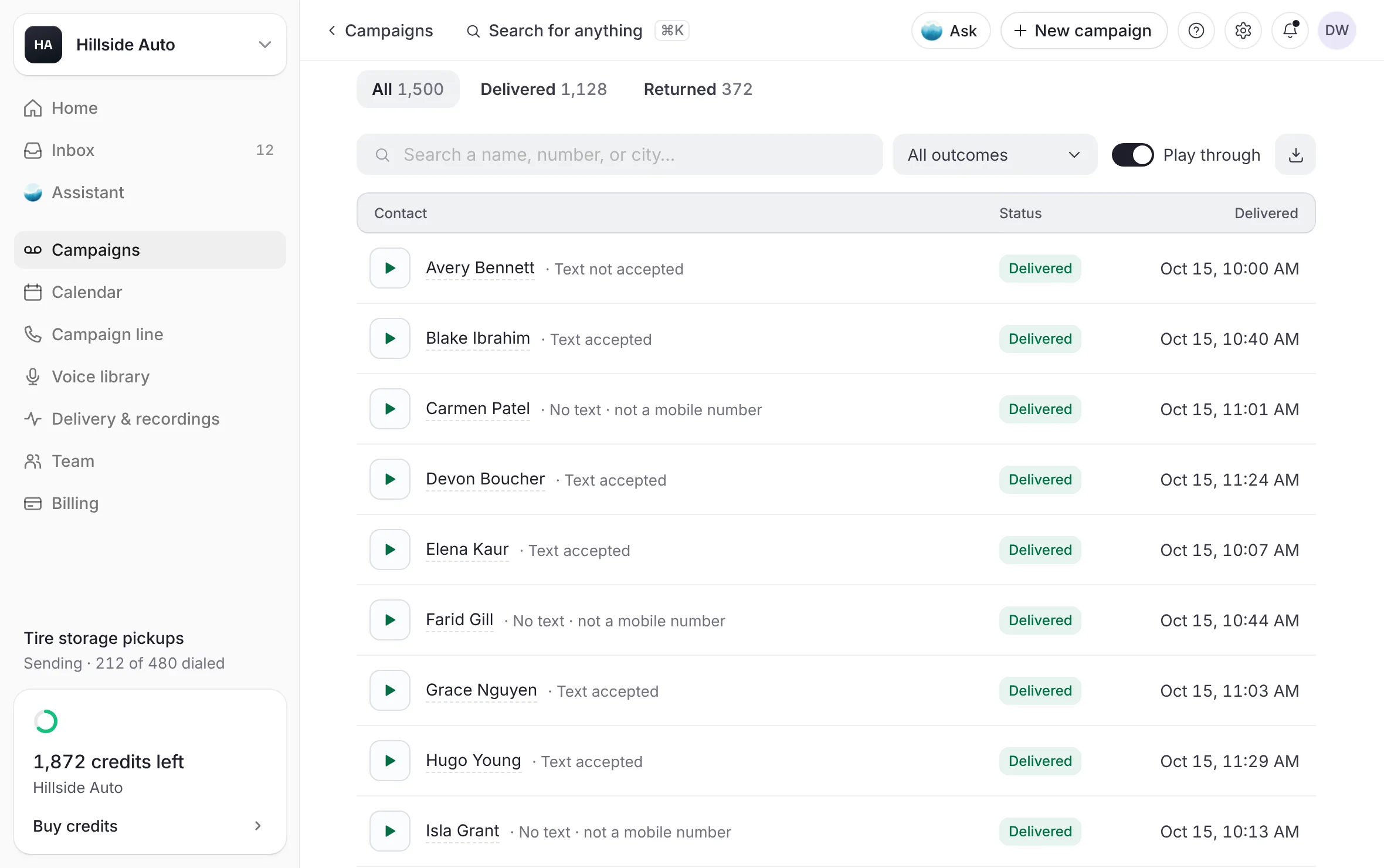 Example
What you see
Buttons All, Delivered and Returned with their counts, and To go while the campaign sends. Under them, a search box, the outcome menu, Play through and a key to export. Then a table: Contact, Status and Delivered, the time it was delivered on your business's clock.
Press a row's play button to hear that contact's voicemail. Turn on Play through to keep playing the next one.
Narrow the rows with All, Delivered or Returned, or with the outcome menu: New to you, Heard, Replied to the text, or a reason a contact got no follow-up text. Or type a name, a number or a detail from your list in the search box.
Select a contact's name to open their panel.
Under each name, a few grey words say what came back: why a voicemail was returned, or what became of the follow-up text, such as "Text accepted", "Text not accepted", "No text · not a mobile number", "Replied" or "Opted out". The table shows the first rows; select show more at its foot for the rest.
A contact's panel shows Delivered or Returned with the time, the Status, the Phone and the Follow-up text. Under Voicemail events, a delivered voicemail reads "One credit was used." and a returned one gives the reason and "No credit was used." Then their voicemail with what they heard, and What came back. Step to the next or previous contact from the panel.
Recordings show once our team has checked them. Before that, the section says so, for example Recordings unlock once it's approved. See Every voicemail, and what each person heard.
Follow-up texts
When the campaign sends a follow-up text after each delivered voicemail, Follow-up texts shows three cards:
The carrier's word: the share of texts accepted by the carrier, with Accepted by the carrier, No receipt and Not accepted.
Not sent: delivered voicemails that got no text, by reason, for example Landlines or Called back first. Select a reason to see those contacts in People on it.
Replies: how many replies, from how many people, with Replied, Unread and Opted out.
Under the cards, a line says each text is included with its voicemail, and when the texts go out.
Then Conversations: each person who replied, with the day and Unread, You replied, Read or Opted out. Every reply shows the rest. Select a person to read the conversation in the order it happened, from the voicemail they heard to their reply. Select Reply to answer from your campaign line. See What became of each text and The Inbox.
Callbacks
When the campaign uses your campaign line, Callbacks lists every call to the line from this campaign.
What you see
All, To call back, Answered and Not forwarded, with their counts, and the order: To call back first or Newest first. Then "Calls to your campaign line. Counts calls to that number only." Each call shows the caller, the outcome, where it rang, the number and list, the length and when. Calls are never recorded.
Select a call to open it. See Callbacks.
Leads sent to your CRM
When your line sends leads to a CRM, Leads sent to your CRM says: "Callbacks and first text replies from this campaign, sent to your CRM as leads." It shows Leads, State, Last sent and Leads go to, then each lead. Select a lead to see its Phone, Created, State and Attempts. A lead that failed has Send again. See Send leads to your CRM.
Details and the trail
Details sits at the foot of the page, open. Select Details to fold it or open it again.
It lists:
Voice, Message and List (the file and how many contacts).
Sends, or Sent once it went out: how it goes out, such as All at once, and when it starts, started or finished. Every campaign starts inside calling hours on the recipients' clock.
They see: the number your contacts see, with a campaign line.
Callbacks ring: the phone or ring group a callback rings. While the campaign is under way, it has Change. See Change or cancel a campaign.
Follow-up text: On, or "Off for this campaign".
Signed by: who signed, and the day.
Under Trail, every event in the campaign's life, newest first, with its time: Campaign created, List added, Script written, Signed by and the signer's name, Submitted, Scheduled once its start has passed, Audio made, Sending or Sending began, and Done or Stopped. A note under the trail names the time zone the times are on.
Then What they hear: the script, with each detail from your list marked. Last, the Sign-off record: who signed, when, and the signature. See Review and sign.
Export the results
Select Export in the head, or the export key beside Play through in People on it.
In Export results, under What to export, choose Delivered, Returned or Everything. Each shows its count.
Select Export. The file is a CSV, which opens in any spreadsheet app.
The file has one row per contact with a result, in your list's order, with the columns First name, Last name, Phone, Offer, City, Province, Vehicle, Result, Reason, Carrier and Delivered at. Result reads Delivered, Returned or Waiting on the carrier. Reason is the reason a voicemail came back.
Good to know
A link to one of the page's sections opens the page at that section.
While you are on a campaign's page, the search in the top bar searches that campaign.
Times on the page are on your business's clock.
If what came back on the line cannot be read, a band says "What came back on the line couldn't be read just now.", with Try again. Nothing was changed.
Related
Last updated October 21, 2026
Was this helpful?