Send leads to your CRM
Send each callback and each first text reply to your CRM as a lead, by email in the ADF/XML format dealership CRMs read. What counts as a lead, how to set it up, and how to check what was sent.
Your campaign line can send each callback and each first text reply to your CRM as a lead. Each lead is one email to your CRM's lead intake address, written in ADF/XML, the format dealership CRMs read. The lead carries the person, the campaign, the voicemail script and what happened.
Before you start
You need a campaign line. See Get a number.
You need your CRM's lead intake address: the address that reads ADF/XML internet leads. Your CRM vendor gives it to you, usually one per rooftop.
The workspace owner and admins set this up and send leads. A member reads the settings and the list of leads sent.
What counts as a lead
Three moments can each become one lead. Send a lead when chooses which ones:
| Box | The lead is sent when | In the list it reads |
|---|---|---|
| A callback goes unanswered | A callback to your line rang out, the caller hung up before it could ring, or it could not be forwarded. | Missed callback |
| A callback is answered | Someone on your team answered a callback, once the call ends. | Callback answered |
| A customer texts back (the first reply of a conversation) | A person replies to your line for the first time in a conversation. | Text reply |
A conversation becomes one lead, not one lead per message. Further replies from the same person on the same campaign are not mailed again for a while. You answer them in the Inbox.
A reply that reads like an opt-out, and a STOP text, never become a lead.
A caller whose number is hidden never becomes a lead.
Texts from your own alert mobiles or your team's mobiles never become a lead.
A caller who is on none of your lists still becomes a lead. The list shows them as Unknown caller.
Each call or message becomes a lead once at most.
Callback leads count calls to your campaign line. Counts calls to that number only.
Set it up
Open Campaign line in the sidebar.
Select the Calls and texts tab and scroll to Send leads to your CRM.
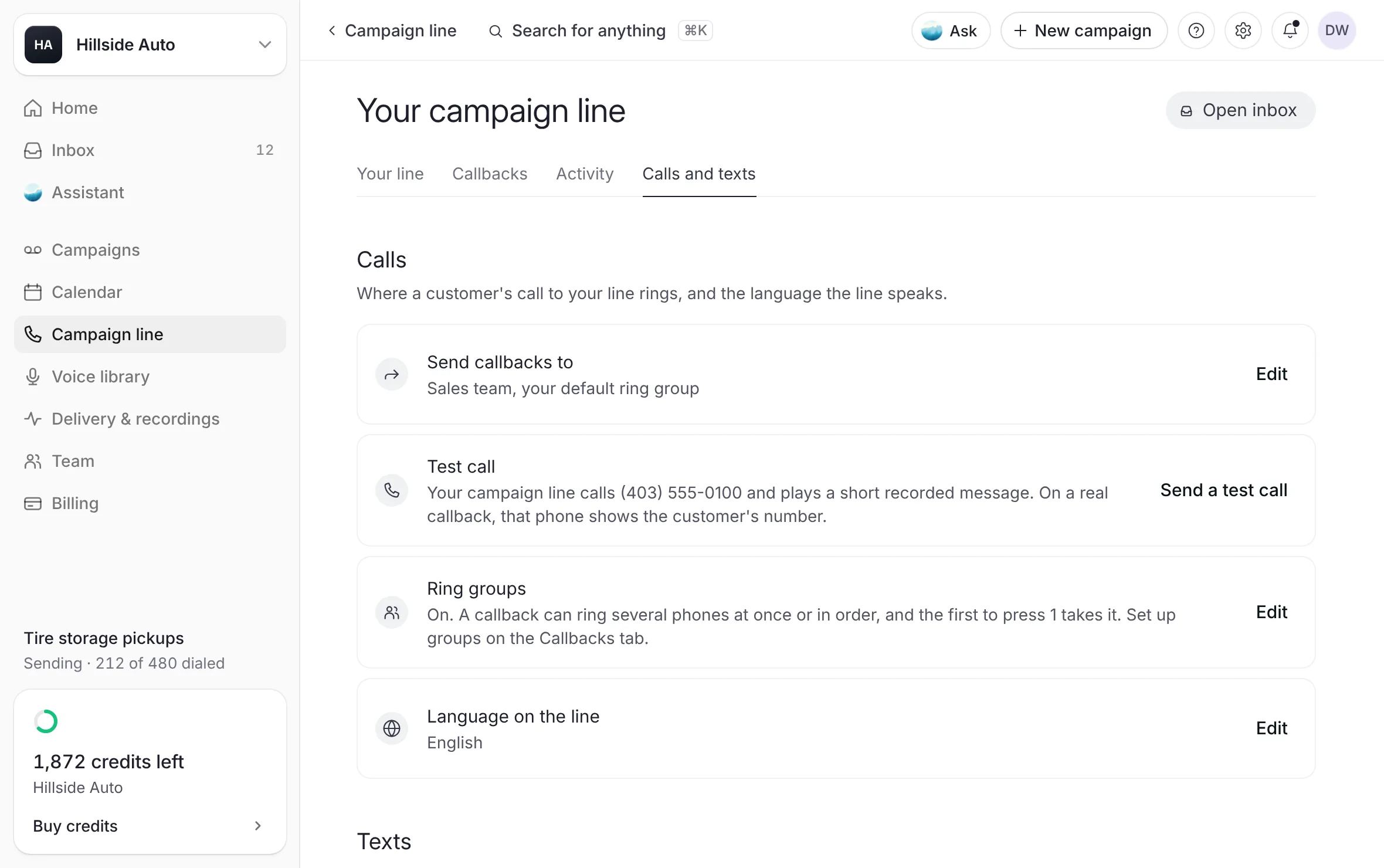 Example
On CRM lead intake address, select Add. Paste the address, then select Save. You can add up to 3 addresses, for a second CRM or a manager's copy.
On Send a lead when, select Edit. Tick the moments you want, then select Save.
On Your dealership in the CRM, select Edit. Type your store's name exactly as your CRM names it, then select Save. Left blank, it uses your business name.
On Lead source name, select Edit if your CRM expects another name. Left blank, the source is "The Call Guy".
Ask your CRM to add "The Call Guy" (or your own source name) as a lead source.
Select Send a test lead.
What you see
a test lead at the top of Leads sent to your CRM, with its state. In your CRM, a prospect that says it is a test lead from your campaign line. You can delete it there.
A person's inbox would only see the XML. Use the CRM's intake address, not a person's email.
Send a test lead uses the saved addresses. Until you save your changes, the row says Save your changes first, then send a test lead.
With no address saved, the row says Add your CRM's lead intake address above and save to start.
Check what was sent
Leads sent to your CRM lists every lead this line has mailed, newest first, with the count beside its title.
Each row shows:
the person's name (or Unknown caller) and their number;
the kind (Missed callback, Callback answered, Text reply or Test lead), the campaign, and the address it went to;
a state: Sent, Sending…, Failed or Not sent.
Show all, with the count, lists the rest. Show fewer folds the list again.
Send a lead again
On the lead's row, select Send again.
What you see
the row's state updates. The lead goes to the addresses saved now, and the CRM is told it is a resend of the same lead.
When a send fails, the row says why. When it says the address was refused ("Check it and save, then send again."), the CRM's address is wrong: correct it, save it, then select Send again.
Leads on a campaign's page
While your line sends leads, a campaign's page has a section Leads sent to your CRM: "Callbacks and first text replies from this campaign, sent to your CRM as leads." The Leads sent to your CRM figure on the page's After the voicemail card opens it.
What you see
four facts across the top: Leads, how many; State, how many are sent, sending, not sent or failed; Last sent; and Leads go to, your CRM's address, with Copy the address. Under them, the campaign's leads, each with its name, its kind and its state. Beside the list, the lead you chose: Phone, Created, State with the reason when it did not go, and Attempts. A text reply's lead also shows Their text reply.
A failed lead, or one that never went, has Send again beside its name.
The settings button beside the section's title, Where leads go, in settings, opens Send leads to your CRM on the line's settings.
On a phone, select a lead to open it as a full sheet.
See A campaign's page.
What a lead holds
The person's name and number, and the details your list holds for them, such as an email, an address and a vehicle.
The campaign, the voicemail script they heard, and what happened: the call and its length, or their words.
Your store's name as Your dealership in the CRM says it, its mailing address from Sender details, and the source as Lead source name says it.
Good to know
The CRM lead is a separate message from your team's own alerts. Each person still chooses their alerts, including one for A new lead. See Alerts and the daily summary.
Related
Last updated October 19, 2026
Was this helpful?