One phone, or a ring group
How a customer's callback rings your phones. Ring one phone, or make a ring group that rings several at once or one after another, where the first person to press 1 takes the call. Then try it with a test ring.
When a customer calls your campaign line back, the line rings your phones. It can ring one phone, or a ring group: several of your phones at once, or one after another. In a ring group, whoever answers presses 1 to take the call, so a voicemail box never takes a customer's call.
Before you start
The workspace owner and admins make, change and test ring groups. A member sees them on the Callbacks tab without their menus. A member who opens the guided setup sees Ask an admin to change callbacks, with Back to callbacks.
A ring group is made from your callback phones. Add the phones first. See Callback numbers and where calls ring.
If your callbacks ring through a phone setup managed outside the dashboard, the Callbacks tab says so and shows no phones or ring groups. To change who answers, talk to the team behind The Call Guy.
Ring groups are on for every campaign line. The workspace owner and admins can turn them off and back on: on your campaign line's Calls and texts tab, under Calls, select Edit on Ring groups. While they are off, every callback rings one phone, and the Callbacks tab shows no groups. The groups you made are kept for when you turn them back on.
How a callback rings
A customer calls your campaign line back.
The line chooses what to ring, in the order set out in Callback numbers and where calls ring: the campaign's choice, then the number's own phone, then your default.
When that is one phone, the line passes the call on to it. Your phone shows the customer's own number, and the call is yours when you answer.
When that is a ring group, the caller hears ringing while your phones ring. Each phone shows the customer's own number. Whoever answers hears "Callback from your" campaign's name "campaign. Press 1 to take it." When no campaign matched the caller, it names your business instead.
The first person to press 1 is connected to the customer. Every other phone stops ringing.
Whoever answers has 10 seconds to press 1. Any other key, silence or a voicemail greeting hangs that phone up, and the group moves on.
When nobody presses 1, the caller hears a short message from the line with your business's name and a number to call. The call is a missed callback.
One phone on its own rings straight through: whoever answers has the call. To make that phone ask for 1 too, see Ask one phone to press 1.
The line never records a call and never takes a voicemail.
Every callback, answered or missed, is matched to its campaign. Counts calls to that number only.
The three ways a group rings
| Choice | What happens |
|---|---|
| One phone | "The phone you choose rings for up to the time below. Whoever answers presses 1 to take the call." |
| All at once | "Every phone below rings together. The first person to press 1 takes the call." |
| In order | "The first phone rings, then the next, until someone presses 1." |
Ring for sets how long the phones ring: from 10 to 45 seconds, in steps of five. A new group starts at 25 seconds.
With In order, the setting reads Each phone rings for: each phone gets that long before the next one rings.
Each phone in a group is one of your callback phones. A phone you remove from your list leaves every group it was in.
Make a ring group
Open Campaign line in the sidebar and select the Callbacks tab.
Under Ring groups, find Make a ring group and select Make a group.
What you see
How they ring: "Choose what happens when a customer calls back. You can make more than one of these and pick one for each campaign."
Type a Name your team will know, for example "Sales team".
Choose One phone, All at once or In order.
Check the phones in the group:
With One phone, choose it under Phone.
Otherwise, every phone is listed in the order it rings. Drag a phone by its handle to move it, or focus the handle and use the up and down arrow keys. Select Remove to take a phone out. Choose a phone under Add a phone to this group to put it back.
Choose Ring for (or Each phone rings for).
Tick Make it the default for new campaigns and other calls to your line if this group should be the default.
Select Next. The group is saved, and Try it opens. See Try it with a test ring.
What you see
under the ring time, "If nobody presses 1, the caller hears" the group's first phone "to call back, the way a missed callback works today."
A group needs a name. Without one, the step says "Give the group a name your team will know, like Sales team."
Two groups cannot share a name: "You already have a group with that name."
A store keeps up to 10 ring groups. With that many, Make a group is greyed out.
Your ring groups on the Callbacks tab
Each group is a row under Ring groups: its name, its phones, how it rings and its ring time, for example "Sales desk, Service desk · All at once · 25 seconds". The default wears Default.
Select the More button (three dots) on a group's row:
Edit: opens How they ring for that group.
Try it: opens the test ring for that group.
Make default: makes it the default.
Remove: removes the group. A note offers Undo. "Campaigns set to ring it ring its first phone instead."
The default
Your default is what new campaigns start on, and what rings for a call that matches no campaign. It is a ring group when you made one the default, or your default phone otherwise.
A ring group set as the default shows on Your line in the numbers table's Callbacks ring column, with "Your default ring group". Change there opens the Callbacks tab.
To go back to one phone, open the More button on a phone under Phones that ring and select Make default. The phone becomes the default, and the group no longer is.
Choose a ring group for a campaign
In the campaign builder's When step, Callbacks ring lists your Ring groups first, then each phone under One phone. A new campaign starts on your default. Make a ring group… at the end opens the ring group setup in a new tab. See Build a campaign.
To change it on a campaign that has not finished, open the campaign's page, scroll to Details, and select Change beside Callbacks ring. Choose in Ring these phones, then select Save. The change applies from the next call on. See Callback numbers and where calls ring.
Try it with a test ring
A test ring rings a group the way a customer's callback would, so you can hear it before a customer does.
On the Callbacks tab, open the group's More button and select Try it. Or reach Try it at the end of the guided setup.
Select Ring them now.
Answer any phone in the group. You hear "This is a test ring for" your business's "callbacks. Press 1 to take it."
Press 1. You hear the short test message, then hang up.
What you see
a card titled Test call · and the group's name, with how it rings and a row for each phone. Each row says where that phone is: Waiting its turn, Ringing, Picked up, waiting for 1, Took the call, No answer or Stopped ringing. When someone presses 1, the card says who took it and after how many seconds, and "The others stopped ringing."
Your phones see your campaign line calling. A real callback shows the customer's own number.
If nobody presses 1, the card says "Nobody pressed 1. Check each phone rang and wasn't on silent, then try again."
Ring them again runs it once more.
A test ring is not a callback. It is not counted in your callback figures.
Test rings are limited each hour: "Three test rings an hour. Try again later." for one login, and "Your team has placed six test rings this hour. Try again later." for the workspace.
Ask one phone to press 1
A phone that rings on its own, outside a group, rings straight through. You can make it ask for 1 as well, so its voicemail never takes a customer's call.
On the Callbacks tab, under Phones that ring, select the More button (three dots) on the phone's row.
Select Ask whoever answers to press 1.
What you see
the phone's row adds "Asks whoever answers to press 1", and a note says it asks whoever answers to press 1 when it rings without a group.
To turn it off, select Stop asking to press 1 in the same menu.
Set up callbacks step by step
The guided setup has three steps: Your phones, How they ring and Try it.
Open Campaign line in the sidebar and select the Callbacks tab.
Select Set up callbacks step by step: "Your phones, how they ring, then a try on your own phones."
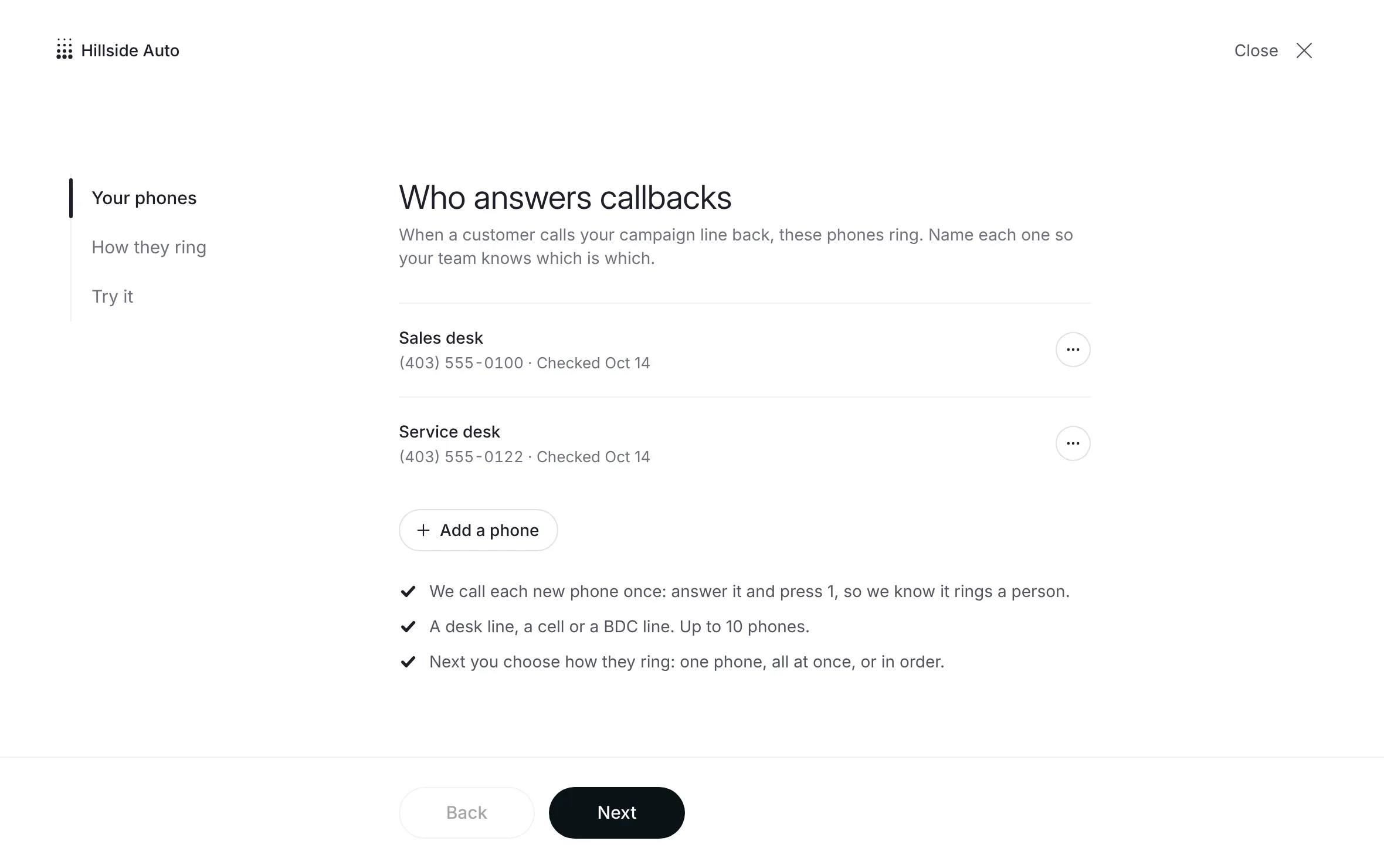 Example
What you see
Who answers callbacks: "When a customer calls your campaign line back, these phones ring. Name each one so your team knows which is which."
Check the list of phones. Select Add a phone to add one: type a Name and a Number, then select Call to check. See Check a phone, and send a test call.
Select Next. How they ring opens on your default group (or your first group). With no group yet, it starts a new one with every phone, All at once. Set it up as in Make a ring group.
Select Next to save the group and open Try it. Run the test ring.
Select Done to go back to the Callbacks tab. Back returns to a step, and Close leaves at any step.
When a callback is missed
The Callbacks page under Delivery & recordings lists it. See Callbacks.
Each person chooses how they hear about a missed callback: a text, an email, the bell, or nothing. See Alerts and the daily summary.
If your line sends leads to your CRM, a missed callback can become a lead. See Send leads to your CRM.
Call the customer back from your own phone. Select their number in the dashboard to copy it.
Related
Last updated October 20, 2026
Was this helpful?