Change or cancel a campaign
What you can change after you submit a campaign, how to answer a change our team asks for, how to cancel a scheduled campaign, and how to move where its callbacks ring.
Once you submit a campaign, it is with our team. What you can do from then on depends on its status. This page covers a change our team asks for, cancelling a campaign before it sends, moving where its callbacks ring, and the controls you get on a campaign your store sends on its own.
What you can do, by status
| Status | What you can do |
|---|---|
| In review | Ask the team about it from its page. |
| Needs changes | Fix the part our team's note is about and resubmit. See Needs changes. |
| In production, Scheduled | Ask the team to cancel or change it from its page. See Cancel. |
| On hold | Ask the team what is needed to lift it. See Why a campaign is on hold. |
| From In review to Sending | Move where its callbacks ring. See Where callbacks ring. |
A campaign your store sent with Send on my own has its own controls. See A campaign you send on your own.
Needs changes
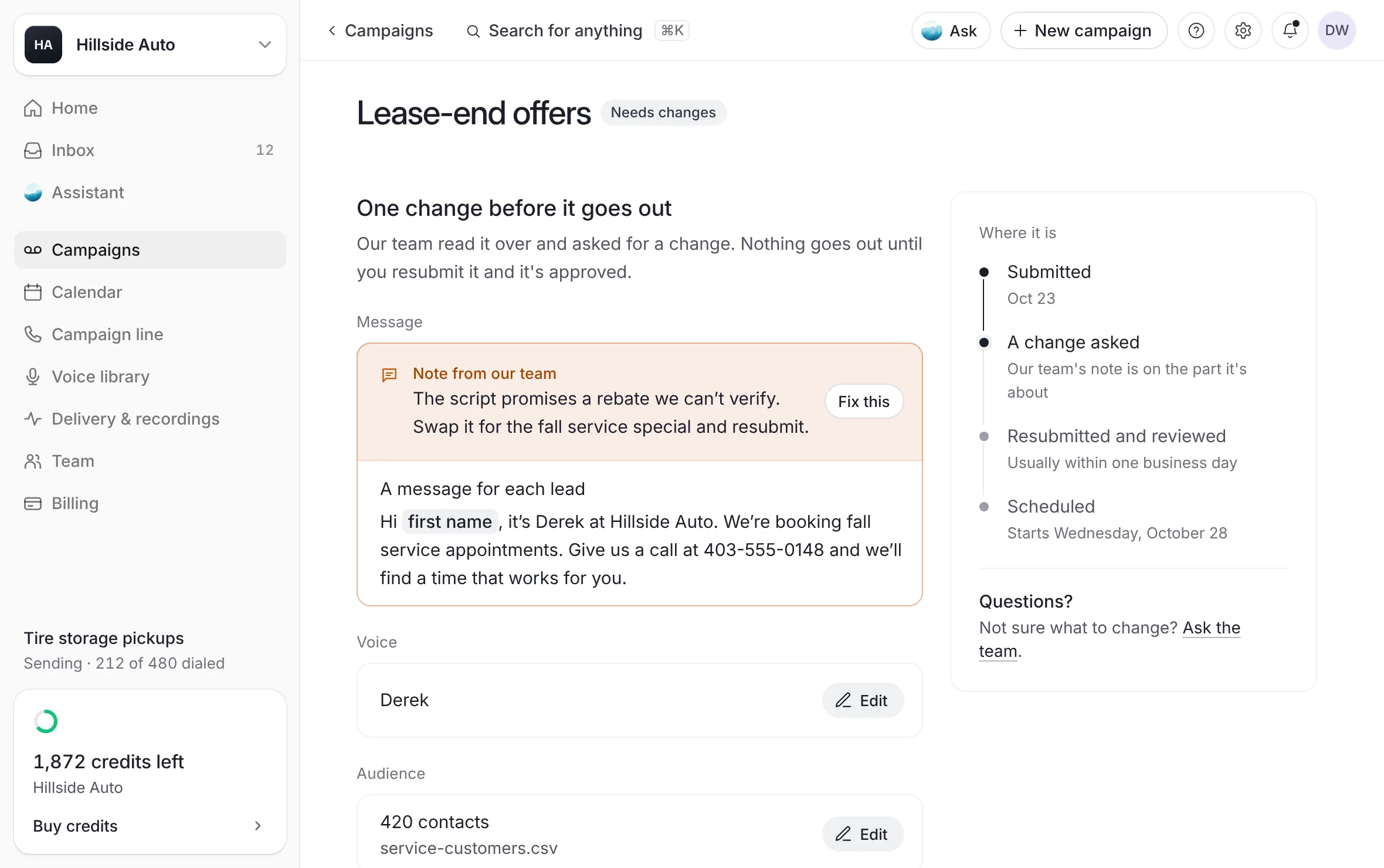
When our team asks for a change, you get an email with our note, and the campaign reads Needs changes. Nothing goes out until you resubmit it and it is approved.
Open the campaign from Campaigns.
 Example
What you see
One change before it goes out. Each part of the campaign is a box: Message, Voice, Audience, Schedule and, when the campaign has a follow-up text or a callback number, Follow-up. The Note from our team sits on the part it is about.
Select Fix this on the part with the note, or Edit on any other part.
If you already have a draft open, the builder asks Replace the draft you have open? Select Replace it.
The builder opens a copy of the campaign on that part, with your list already in it. Make the change.
Go to Review, sign, and select Submit for review.
Resubmit at the foot of the card opens the copy on Review, ready to sign and send.
What you see
The copy goes to In review, and the review starts again. It is usually done within one business day.
If the note is about your list, the copy opens on Audience and asks you to tick the permission box again.
You can also reply to our email with the fix.
Not sure what to change? Select Ask the team on the card.
Cancel
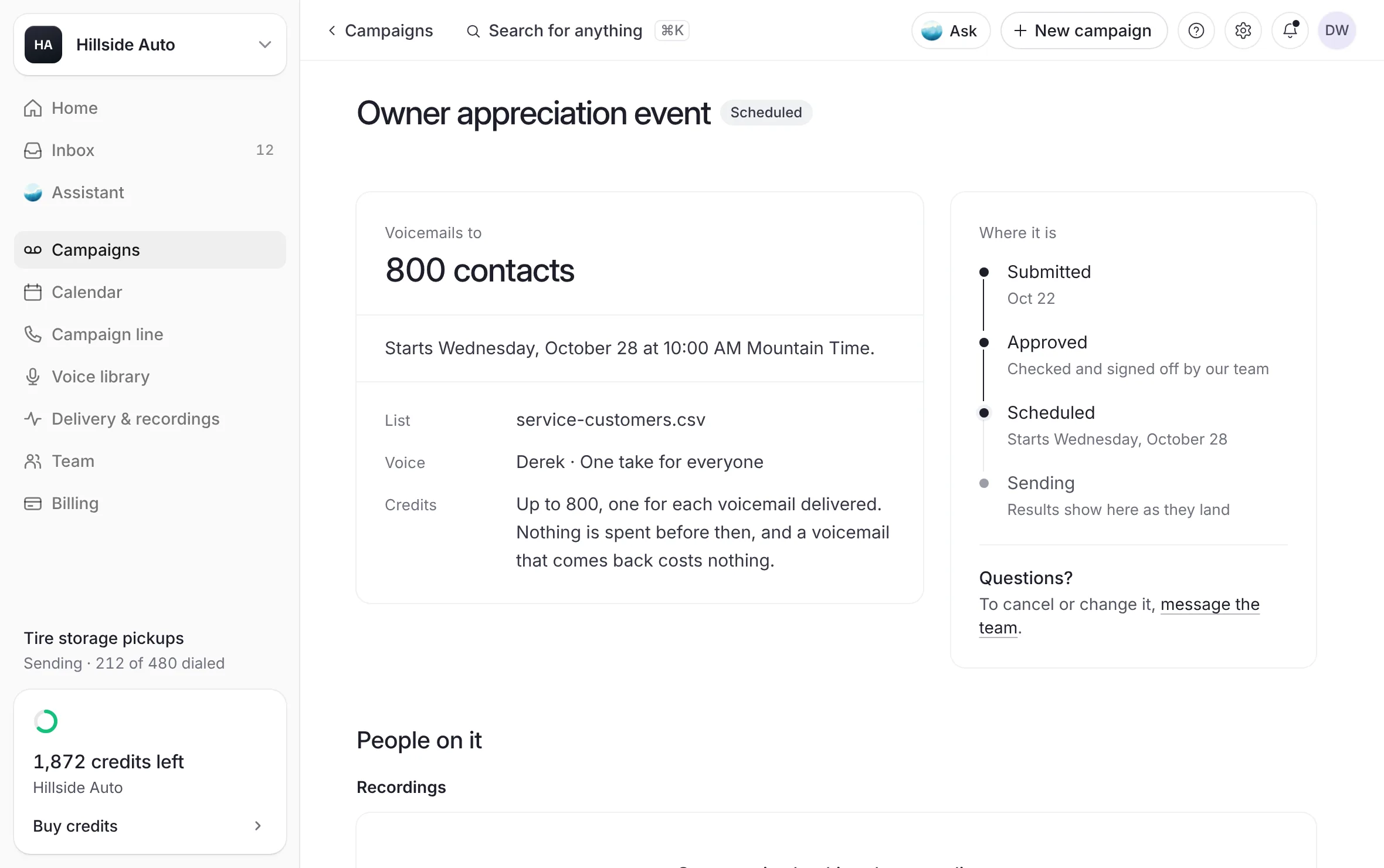
A campaign that reads In production or Scheduled has no cancel button on its page. To cancel it, ask the team from its page.
Open the campaign from Campaigns.
 Example
Under Where it is, select message the team.
Help opens with a note to the team, the request to cancel already written in it. Add anything the team needs to know.
Select Send it to the team.
To change the day, the script or anything else on a scheduled campaign, send the team a note the same way and say what should change.
What you see
The schedule card says what the campaign can spend: up to one credit for each voicemail delivered. Nothing is spent before it sends.
Where callbacks ring
With a campaign line, you can move where a campaign's callbacks ring while it is under way, from In review through Sending.
Open the campaign from Campaigns.
Go to Details, at the foot of the page. If it is folded, select Details to open it.
Find Callbacks ring and select Change.
In Ring these phones, pick a ring group or one phone, or Add a new number… to add one.
Select Save.
What you see
The change counts from the next call on. A campaign that is done or stopped keeps the number it went out with.
See Callback numbers and where calls ring.
While a campaign sends
A campaign our team reviewed has no pause or stop control on its page. To ask for a pause or a stop, write to the team. See Get help from the team.
A campaign you send on your own
When your store chose Send on my own, the campaign's page gives the account owner and Admins its controls. Members see none. See How the team reviews a campaign.
| When it reads | The controls | What happens |
|---|---|---|
| Getting ready once its checks have passed, or Scheduled | Cancel campaign | Nothing goes out, and no credits are spent. |
| Sending | Pause campaign and Stop campaign | A pause holds everything not yet sent until you resume it. A stop is final: nothing more goes out. |
| Paused | Resume campaign and Stop campaign | It picks up where it left off, inside calling hours. |
Each control asks you to confirm first. Credits are spent only on voicemails already delivered. A large campaign can take a moment to pause or stop; nothing new goes out meanwhile.
If your credits run out while it sends, the campaign pauses on its own and reads Paused for credits. Buy a bundle, then select Resume campaign. If our team paused it, you can't resume it yourself: write to us.
Good to know
A draft you have not submitted is yours to change or delete at any time. See Build a campaign.
A credit is spent only on a delivered voicemail. A campaign that never sends spends nothing.
Related
Last updated October 21, 2026
Was this helpful?