Create your account
Sign up at /start, prove your email with a code, choose a password and tell us about your business.
You create your account on one card at /start. It asks for your email, proves it with a code, asks for a password, then asks about your business. Nothing is bought at sign-up, and the account opens straight away.
Before you start
Your business must be in Canada. The Call Guy serves Canadian businesses and Canadian recipients, across Canada.
Have your business's name and a phone number we can reach you on.
Use an email address you can open now. The code goes there.
Open the sign-up
Go to thecallguy.ca/start. Every sign-up button on the site opens it, and so does Sign up on the log-in page.
 Example
What you see
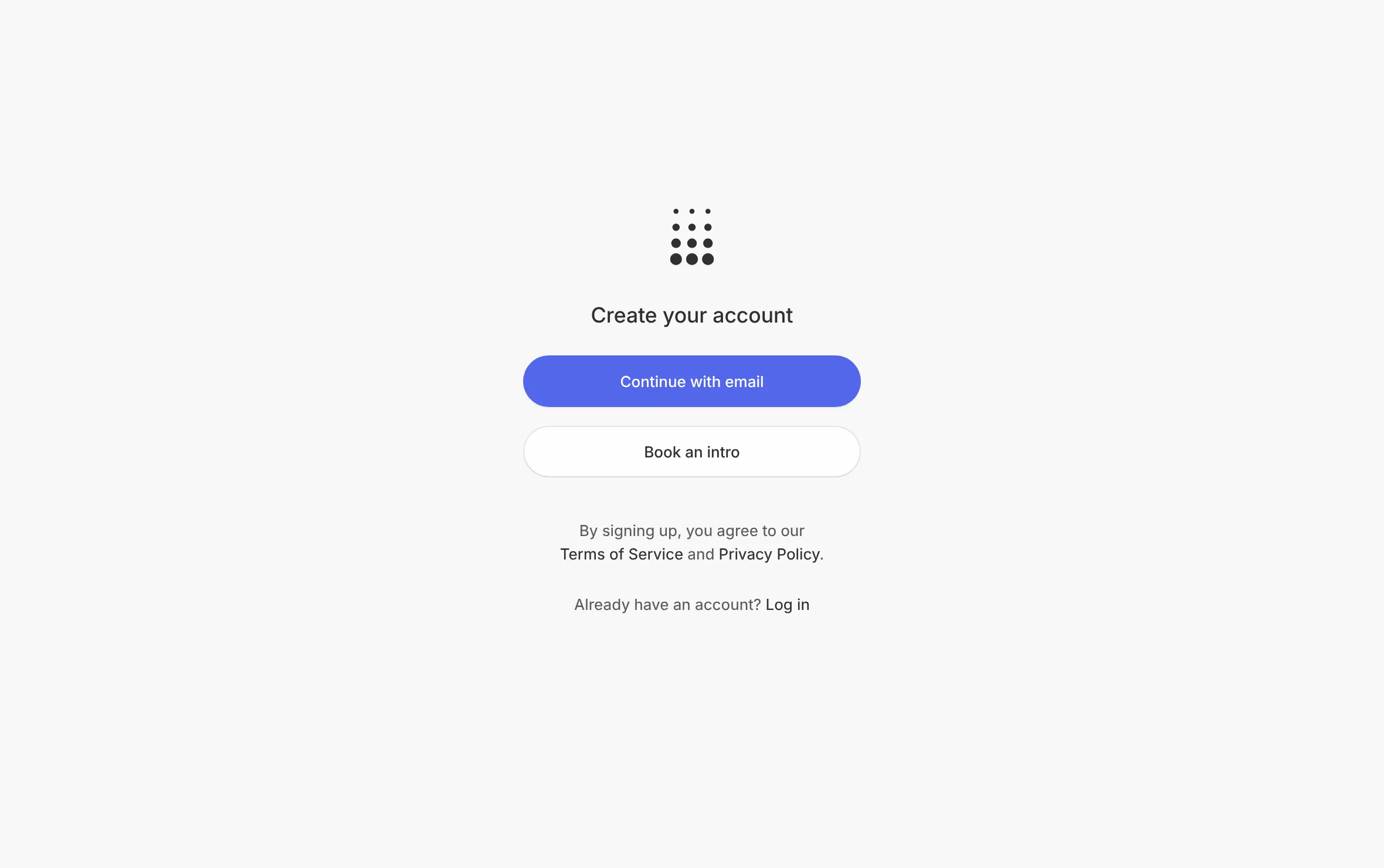
Create your account, with Continue with email and Book an intro under it. Below them: "By signing up, you agree to our Terms of Service and Privacy Policy." and "Already have an account? Log in".
Select Continue with email.
If you arrived from a bundle on the pricing page, a line under Continue with email names the bundle you picked. Nothing is bought here: you buy credits later, from your dashboard.
Book an intro is the other way in: a call with the team covering the dashboard, the process and your questions, with the bundle that fits. Nothing is sent to a list on the call.
Prove your email with a code
On What's your email address?, type your email.
Select Continue with email. It reads Sending code… while the email goes out.
What you see
Check your email, with "We've sent you a temporary code. Please check your inbox at" and your address.
Open the email and find the six-digit code.
Type or paste it in the Enter code field. The sixth digit checks it for you, or select Continue with code.
What you see
Choose a password, once the code is right.
The code expires 10 minutes after it is sent.
No email? Under the text, "Didn't get it? Send a new one in" counts down, then Send a new code appears. Select it for a fresh code.
A wrong code reads "That code isn't right. Check the email and try again."
An expired code reads "That code has expired. Send a new one below."
Too many wrong tries read "Too many tries for that code. Send a new one below."
If that email already has an account, the card says You already have an account right after the code. Select Log in to sign in instead.
Choose a password
Type a password of at least 10 characters. Select Show to see what you typed, and Hide to cover it again.
Read the line under the field. It reads "Good length — that's a password." once it is long enough.
Select Continue.
What you see
Create your business account, with "Campaigns run in its name." under it.
A few memorable words make a good password. Symbols are not required.
A password that is too long is refused with the reason.
A password that has appeared in a data breach is refused when you select Create account at the end: "That password has appeared in a data breach — choose one you don't use anywhere else." The password screen comes back so you can pick another. Nothing was created.
Tell us about your business
Every field on this screen is required.
Your name: your full name.
Business name: the name your customers know. Campaigns run under it.
Phone: your number, after the +1. The line under it reads "Where we reach you about your account." The setup that follows uses this same number, so you never type it twice.
Province or territory: choose yours. It also fills in your business's time zone in the setup, where you can change it.
Locations: choose One or Several. Several shows "You set up one first, then add the others from your dashboard." It is an answer only: with Several, your setup checklist later adds a task to add your other locations.
Tick the first box: "I confirm I'm authorized to create this business account, campaign lists will contain the business's own customers or leads, and nothing sends until an authorized person approves it."
Tick the second box: "Yes — The Call Guy may contact me at this number and email about my account and its services, by call, voicemail, text, and email, including automated messages and reminders. I can opt out anytime."
Select Create account. It reads Creating your account… while it works.
What you see
you are signed in, and the setup at /dashboard/welcome opens. See Set up your business.
If something is missing, the field turns red with a line under it, for example "Add a phone number we can reach you on." or "Choose one location or several." A missing tick reads "Tick the first box to confirm you're authorized to create this account." or "Tick the contact box so we can reach you about your account."
At the foot of the card, "Using" names your email. Select Use a different email to go back and get a code for another address.
If your business is outside Canada
The Call Guy is for Canadian businesses. Outside Canada is the last choice in Province or territory, and it creates no account.
Choose Outside Canada. Locations leaves the card, and Where is your business? takes its place.
Fill in Where is your business?.
Tick the contact box: "Yes — The Call Guy may contact me at this number and email about my request and its services, by call, voicemail, text, and email, including automated messages. I can opt out anytime."
Select Join the list.
What you see
You're on the list. "Nothing else happens until then — no account, nothing owed."
Good to know
The code proves your email, so a new account starts confirmed. There is no separate link to click. See Confirm your email.
If too long passes between the code and Create account, the email screen comes back with "Your code has timed out. Continue to get a new one."
Many tries in a short time read "That's a few tries in a row — give it an hour, or email contact@thecallguy.ca."
If the page's security check fails, the card asks you to reload the page and try again, or to email contact@thecallguy.ca.
If online sign-up is unavailable, the card reads Almost — email us instead. Email contact@thecallguy.ca or book an intro.
If your account was made but signing you in failed, the card reads Your account is ready. Select Log in and use the email and password you just chose.
If the account could not be made, the card reads We have your details. The team sets up your login and emails you when it is ready.
Back to signup, under the email, code and password screens, returns to the first screen.
Related
Last updated October 26, 2026
Was this helpful?