Buy credits
Pick a bundle, pay its QuickBooks invoice on Intuit's page, and the credits land on your balance once the payment is confirmed.
Credits pay for your voicemails, and you buy them before a campaign. Pick a bundle on Billing, pay its QuickBooks invoice on Intuit's page, and the credits land on your balance once QuickBooks confirms the payment.
Before you start
You are the account owner. Billing stays with the account owner. A Member or an Admin sees Buy credits greyed out, with "The account owner buys the credits" and "Billing stays with the account owner: ask them to buy the bundle. The credits land on the workspace you share." For a store in a dealer group, the group's owner can buy too: see Billing across stores.
Your email is confirmed. Buying credits needs a confirmed sign-in email. See Confirm your email.
Your business is in Canada. An account registered outside Canada cannot buy credits. See Across Canada.
Choose a bundle
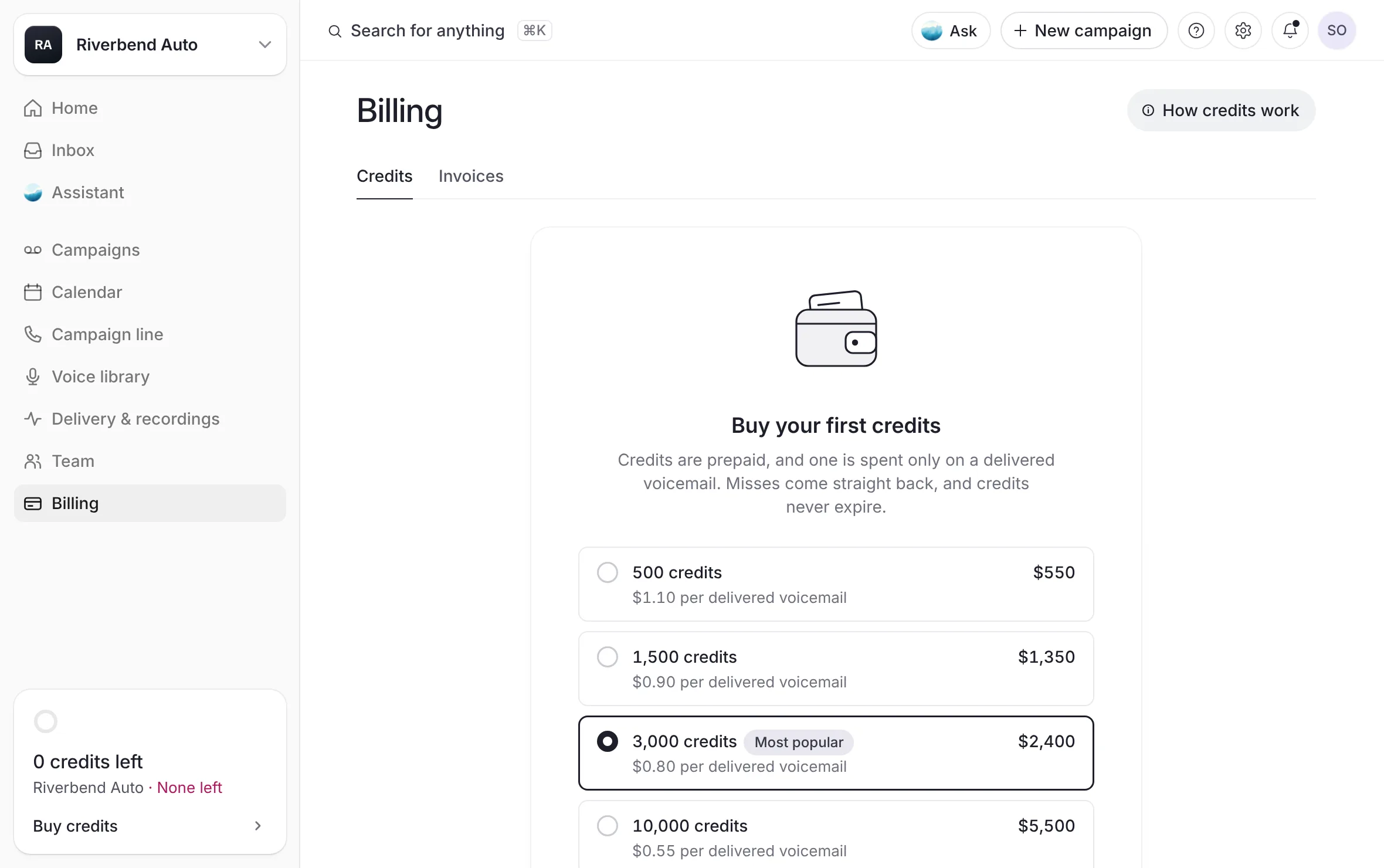
Your first time, the Credits page shows the bundles straight away:
Open Billing in the sidebar.
 Example
What you see
Buy your first credits, the four bundles with the 3,000 bundle chosen and tagged Most popular, and "Paid by a QuickBooks invoice in CAD. Your rate is locked when you buy."
Choose a bundle.
Select Continue. Or select Compare bundles to see them in the Choose a bundle dialog first.
Every time after that:
Open Billing in the sidebar. The Credits page opens.
Select Buy credits at the top of the page. Manage, beside your balance, holds Buy credits too.
In Choose a bundle, the 3,000 bundle, tagged Most popular, is chosen when the dialog opens. Keep it or pick another, then select Continue.
The bundles, their prices and the tag on one of them are explained in Bundles and prices.
Review your bundle
What you see
Review your bundle. On the left, the bundle's credits, its price in CAD and what it includes, with All bundles to go back to the list. On the right: "We email you a QuickBooks invoice. Pay it on Intuit's page and the credits land once QuickBooks confirms it." Under that, Credits, Rate, Total, Balance after paying and Paid by (QuickBooks invoice), and a How billing works link.
Check the bundle and the total.
Select Continue to QuickBooks. While QuickBooks makes the invoice, the button reads Preparing your invoice…. This can take a few seconds.
Nothing is made until you select Continue to QuickBooks. Cancel closes the dialog.
What you see
Invoice #… is ready. "QuickBooks emailed it to" the address it went to, "Pay it now, or later from that email or this page." The address is your account's email. For a store added to a dealer group without an email of its own, it is the store's email, or the group owner's email when the store has none. Three lines say what happens next: Pay now opens Intuit's secure QuickBooks page in a new tab, you pay the invoice there in CAD, and your credits land once QuickBooks confirms the payment.
Pay the invoice
Select Pay now. Intuit's QuickBooks page opens in a new tab.
Pay the invoice on Intuit's page.
Come back to the dashboard's tab.
What you see
the dialog reads Waiting on your payment, with "Waiting for QuickBooks to confirm the payment". When QuickBooks confirms it, a window titled "… credits added" says "Your balance is now" and your new balance, with Start a campaign and Back to billing.
You can close the dialog while you wait: "the billing page keeps watching". After you select Pay now, the page checks for the payment on its own for a while, and again whenever you come back to its tab.
Pay later
Select Pay later instead of Pay now to close the dialog. The invoice waits in your email and on the Invoices page.
While it waits, the Credits page in the same browser tab shows "Invoice #… for … credits is waiting on payment", with its own Pay now: "Your credits land the moment QuickBooks confirms the payment."
To pay from the Invoices page instead, see Invoices and receipts.
When your credits land
Your credits are added once QuickBooks confirms the payment. They do not arrive when the invoice is made, only when it is paid. You do not need to tell us you paid.
If the payment notice from QuickBooks is missed, an hourly check of paid invoices adds the credits.
The bundle then shows in your credit activity as "Bought … credits", with the invoice number. See Your balance and credit activity.
If you paid and the credits are not there yet, see I paid, and my credits aren't there yet.
If something gets in the way
You already have an open invoice for the same bundle. You get that same invoice: "You already had an open invoice for this bundle, so it's that same one: nothing new was made."
QuickBooks is slow. The dialog says "QuickBooks is making your invoice. This can take a few seconds.", then that you can close the dialog and the invoice shows on the page when it is ready. If the wait runs out, the door reads Try again. A second try never makes a second invoice.
QuickBooks couldn't email it. The dialog says "QuickBooks couldn't email it just now, so pay it here. It also waits on your invoices page."
Your email is not confirmed. The review says "Verify your email first", with Resend the email to send the confirmation link again. Once you have confirmed it, select I've confirmed my email to try again.
Your session ended. The door reads Sign in again and brings you back to Billing.
Many invoices in one hour. The dialog asks you to give it a few minutes, or to write to contact@thecallguy.ca.
Good to know
The invoice is the bundle's price plus GST or HST, by the province on file for your account. See Bundles and prices.
Every purchase is one QuickBooks invoice, paid through Intuit. The Credits page says where invoices go, under How you pay: QuickBooks.
A store added to a dealer group without an email of its own has its invoices sent to its Store email, on the store's page in Settings, or to the group owner's email until one is added. See The store's email.
Each bundle invoice carries a note: a prepayment for credits that are spent only on delivered voicemails and never expire, with a link to your terms at thecallguy.ca/terms.
If you closed the dialog while QuickBooks was still making the invoice, the answer arrives as a short message on the page, with Pay now.
If you came to Billing from your setup's voice step with no credits yet, the page says "Your voice studio opens once a bundle is on your balance." See Record your own voice.
A campaign line number is billed on its own, by the month. See Paying for your campaign line.
Related
Last updated October 19, 2026
Was this helpful?