Team activity
See who did what in your workspace, newest first: invites, joins, access changes, sign-ins, support visits and campaign reviews.
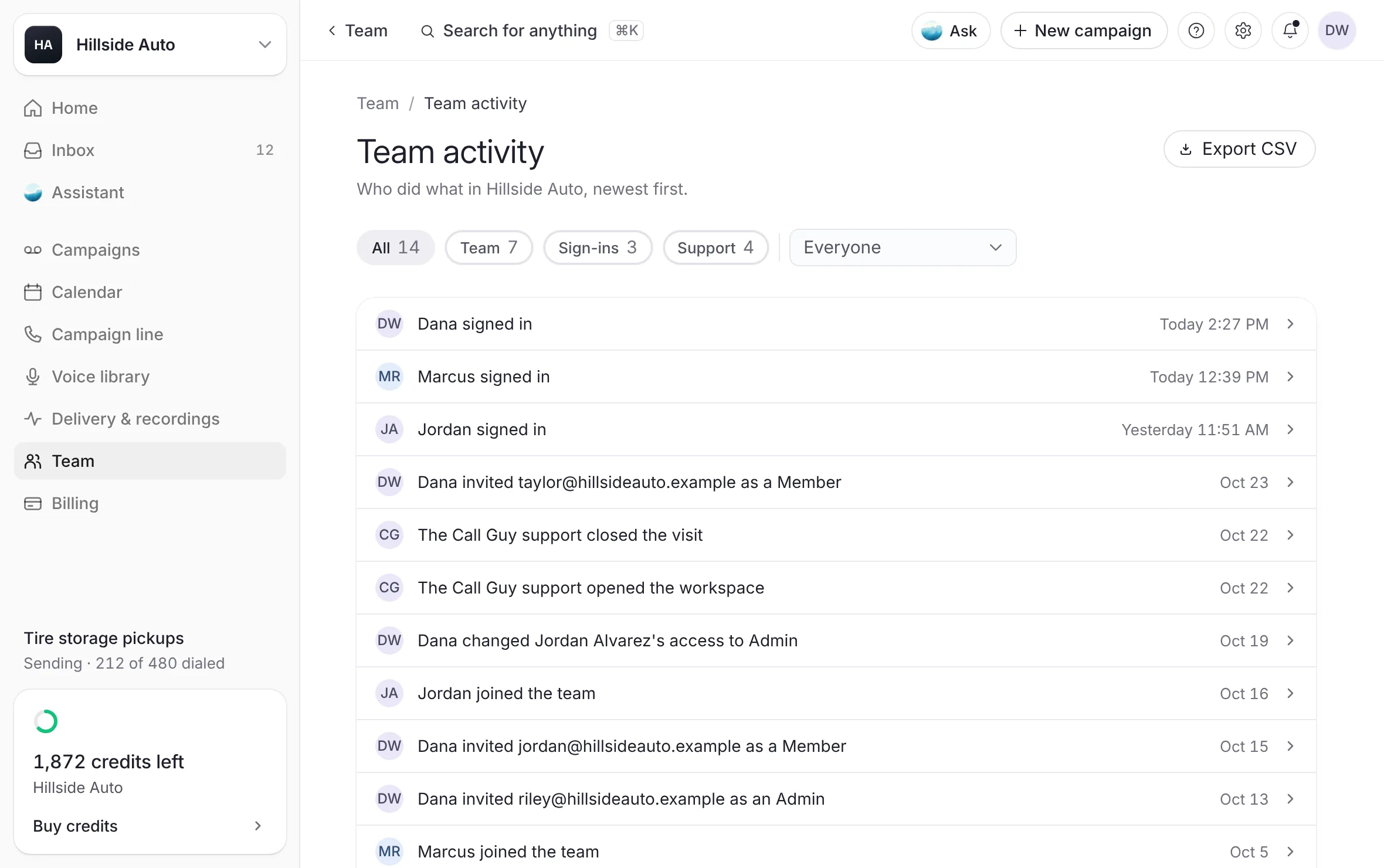
Team activity is your workspace's log: who was invited, who joined, whose access changed, each person's latest sign-in, every visit from our support team, and every campaign our team reviews. Everyone on the team can open it.
Open Team activity
Select Team in the sidebar.
Select Team activity, beside the page's title.
 Example
What you see
"Who did what in" your business's name, "newest first", then a table with When, Who and What.
What the log records
| What it says | When |
|---|---|
| "Invited" an address "as a Member" or "as an Admin" | Someone sends an invite. |
| "Revoked the invite to" an address | Someone revokes an invite. |
| "Joined the team" | Someone accepts their invite. |
| "Added" a person "as a Member" or "as an Admin" | A dealer group gives someone this store. |
| "Changed" a person's "access to Admin" or "to Member" | Someone changes a teammate's level. In a dealer group, it shows on each store where their level changed. |
| "Removed" a person "from the team" | Someone removes a teammate. |
| "Signed in" | A person's latest sign-in. Each person shows once, at their most recent sign-in. |
| "Opened the workspace" | Our support team opens your workspace. While the visit is on, it reads "Open now". |
| "Closed the visit" | A support visit ends, with how long it lasted, in minutes or hours. |
| "Reviewed the campaign" and its name | Our team opens one of your campaigns to review it or check its delivery. One row per campaign per hour. |
Our staff are never named in your log. A support visit, and anything done during it, reads "The Call Guy support".
Narrow the log
Select All, Team, Sign-ins or Support above the table. Each shows how many rows it holds.
To see one person, choose them in the person filter. Everyone shows every person again.
If nothing matches, the page says "Nothing matches". Select Show everything to clear the filters.
Download the log
Narrow the log if you want only part of it.
Select Export CSV.
What you see
a CSV file with the rows the filters show, each with When, Who, Email, What and Detail.
Good to know
Times read in your business's time zone, or in your browser's until the business has one.
The log shows the newest 500 rows.
In a dealer group, each store keeps its own log. The page says "Each store keeps its own log." A change made for the group shows on each store it touches, with the level on that store, marked "Through" and the group's name. Someone added from From your other stores also reads "No new invite".
A new workspace reads "No activity yet": "Invites, joins, sign-ins and support visits will show here as they happen."
Related
Last updated October 21, 2026
Was this helpful?