Alerts and the daily summary
Choose how you hear about a reply, a missed callback and a new lead (email, text or the bell), set quiet hours, turn on the morning summary, and add the mobiles that get the line's reply texts.
Each person on the team chooses how they hear about the moments that need someone: a customer texts back, a callback goes unanswered, a new lead goes to your CRM. Choose email, a text, the bell in the dashboard, or nothing, and add a morning summary of yesterday if you want one.
Before you start
Alerts are your own. Each person sets theirs, at the store that is open.
A text alert needs a mobile number on your profile. Without one, the page says Add your mobile number to get alert texts. with Add it. See Your profile and your store's details.
Alert texts come from your campaign line.
Choose your alerts
Select Settings in the top bar, then Notifications. On the line's Calls and texts tab, Open your alerts opens the same page.
 Example
What you see
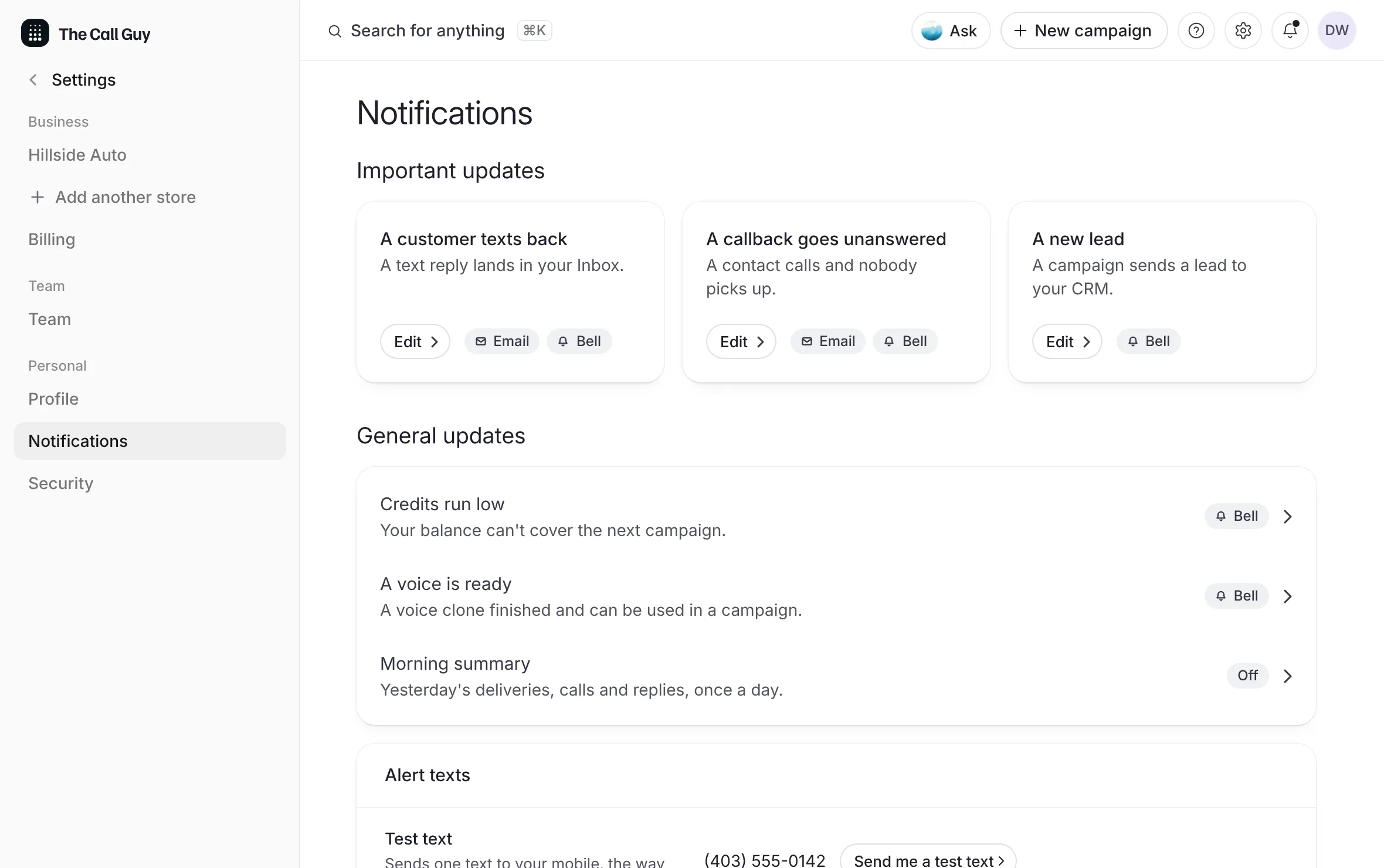
Important updates, three cards with the channels each one reaches you on: A customer texts back ("A text reply lands in your Inbox."), A callback goes unanswered ("A contact calls and nobody picks up.") and A new lead ("A campaign sends a lead to your CRM."). Under them, General updates: Credits run low, A voice is ready and Morning summary.
Select an alert's card or row.
In its window, turn Email, Text or Bell on or off. Each switch saves the moment you flip it.
Select Done.
What you see
the card or row shows the channels now on, or Off.
| Alert | Text | Bell | |
|---|---|---|---|
| A customer texts back | Yes | Yes | Yes |
| A callback goes unanswered | Yes | Yes | Yes |
| A new lead | Yes | Yes | Yes |
| Credits run low | No | No | Yes |
| A voice is ready | No | No | Yes |
| Morning summary | Yes | No | No |
A channel an alert cannot use is greyed out in its window.
The morning summary
Morning summary is one email a day, in the morning on your business's clock: yesterday's replies, missed callbacks and new leads, with their counts, the names behind them and a link to the Inbox.
Turn it on under General updates, Morning summary, Email.
Nothing is sent on a day when all three are zero.
It comes by email only.
Send yourself a test text
On Notifications, under Alert texts, find Test text: "Sends one text to your mobile, the way alert texts arrive."
Select Send me a test text.
What you see
a notice that the test text went from your campaign line to your mobile, named by its last four digits.
Test texts are limited each hour, per login and per workspace, like test calls. See Check a phone, and send a test call.
Quiet hours for texts
Quiet hours for texts: "No alert texts between these times. Email and the bell still arrive."
Turn on the Quiet hours switch.
Choose From and To.
The times are read in your business's time zone. If none is set, the page says so and links to Settings. See Your time zone.
Who hears about replies
The workspace owner and admins see Who hears about replies: each person on the team and how they hear about a reply. Each person chooses their own, and a text needs a mobile number on their profile.
Text alerts on the line
Besides each person's own alerts, the line can text up to 3 Canadian mobiles the moment a customer replies, with a link to the conversation.
Open Campaign line in the sidebar.
Select the Calls and texts tab.
In Texts, find Text alerts and select Add (or Edit).
Type up to 3 mobiles.
Select Save.
The workspace owner and admins change it.
Good to know
A text from one of your alert mobiles, or from a teammate's mobile, is treated as your team answering: it alerts nobody and never becomes a lead.
The Call Guy's support team gets no alerts from your workspace.
Your CRM gets its own lead email, separate from these alerts. See Send leads to your CRM.
The emails The Call Guy sends you about getting started and product news are a separate choice. See Email preferences.
Related
Last updated October 19, 2026
Was this helpful?