The Inbox
Every text conversation on your campaign line in one place. Read and answer replies, mark conversations done or unread, filter by campaign, and opt someone out.
The Inbox holds every text conversation on your campaign line, across all your campaigns. When someone texts your line, the conversation lands here with the campaign it came from, and your answers go out from the same local number.
Before you start
The Inbox opens with your campaign line. Without a number, it shows Get your campaign line first, and the workspace owner sees Set up your campaign line. See Get a number.
While a new number is being set up, it shows Your line is being set up.
Every seat on the workspace (the owner, each Admin and each Member) sees the same conversations and can reply.
Find a conversation
Open Inbox in the sidebar. The sidebar shows how many replies are unread for you.
 Example
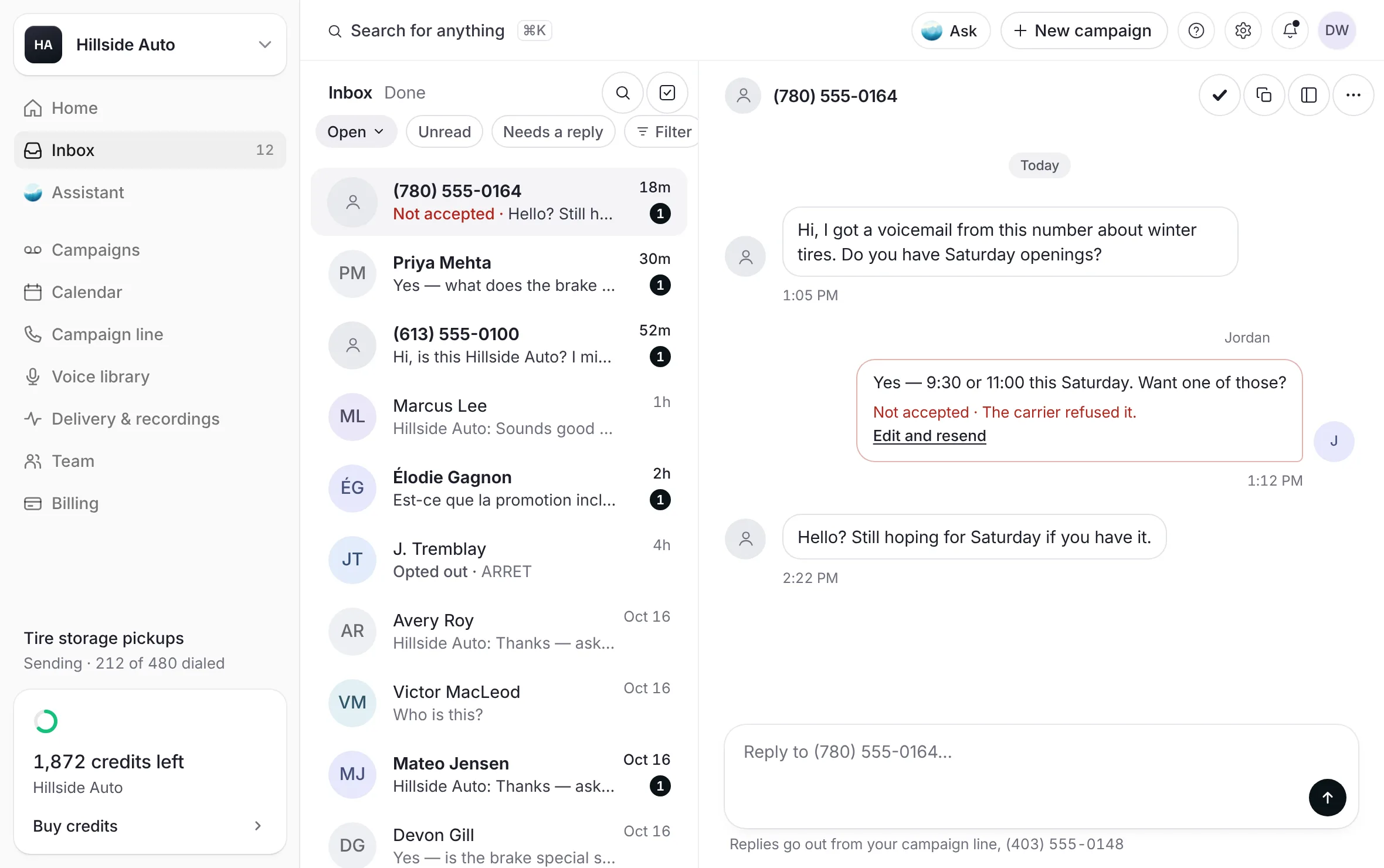
The list opens on Inbox. Use the chips under it to narrow it:
Open: the conversations not marked done. Its menu also holds Opted out.
Unread: conversations with replies you have not read.
Needs a reply: conversations whose last message came from the customer.
Filter: one campaign. Type in Find a campaign to search the list.
Select Done beside Inbox to see the conversations marked done.
To search, select the Search conversations button and type a name, a number, or a word someone wrote.
What you see
each row shows the person's name (or number), how many replies are unread, their last words and how long ago. A text that was not accepted shows Not accepted before its words.
On a wide screen, the newest conversation opens by itself beside the list. It stays unread until you act in it or choose its row.
Read a conversation
Select a row.
What you see
the conversation, newest at the bottom. The voicemail they heard shows as Voicemail delivered, with its player. Calls to your line show between the texts, for example Called back or Missed call. Each text you sent carries its word: Sending, Accepted by the carrier, No receipt, Not accepted or Not sent.
The keys at the top of the conversation:
Mark done: the conversation leaves Open. It comes back by itself when the customer writes again. On a done conversation the key reads Reopen.
Mark unread: on a conversation you have read, it marks it unread for you until you choose its row again.
Copy number: copies their number.
Details: shows the contact panel.
More for this conversation: Open the campaign, Copy number and Opt them out.
Each of these shows a short notice with Undo: Marked as read., Marked unread., Marked done. or Moved back to Open.
Reply to a customer
Open the conversation.
Type in the box at the bottom. Under it, the line says where your reply goes out from: "Replies go out from your campaign line", with the number.
Select Send, or press Enter. Shift and Enter starts a new line. On a phone, the Return key starts a new line and Send sends.
What you see
your reply at the right, with its word under it. It starts as Sending.
You can reply once the person has texted your line. You cannot start a conversation from the Inbox.
A reply is short. If you go over the limit, the box says Shorten it to the limit before it will send.
Replies cost nothing.
Your reply carries no footer. The footer rides only on the follow-up text.
The line sends only so many replies a day. If you reach that, the dashboard says it resets tomorrow.
When a reply was not accepted
A reply the carrier refused reads Not accepted with The carrier refused it. A reply that never left reads Not sent with It was never handed to the carrier. Select Edit and resend to put its words back in the box. Nothing goes until you select Send.
The contact panel
Select Details to see who the person is. On a wide screen, the panel stands beside the conversation.
The keys at the top: Copy number, Reply by text, Open the campaign and More about this contact (Mark unread, Copy number, Opt them out).
Campaign: the campaign that reached them, or Not on any of your lists.
Phone: their number.
Voicemail: the voicemail they heard, or Not delivered.
Follow-up text: the follow-up text they got.
Status: Open, Done, Needs a reply or Opted out.
Called back: their calls to your line, or No calls yet.
Work on several conversations
Select the Select conversations button at the top of the list.
Tick the conversations. The box in the list's head ticks every conversation shown.
What you see
a bar that says how many conversations are selected, with Done (or Reopen on the Done list), Mark read and Mark unread.
Choose an action. Press Escape, or select Clear the selection, to stop.
Opt someone out
Open their conversation.
Open More for this conversation and select Opt them out.
In the window, select Opt them out. To stop, select Keep them in.
What you see
where the reply box was, the conversation says texts to them are off, and that only a START or DEBUT text from them turns them back on.
They are left out of every voicemail and every text from your account. There is no undo here.
When a reply reads like an opt-out but the person did not text STOP, the conversation says so: "Reads like an opt-out, though they didn't text STOP — the line is still open." with Opt them out.
More on opt-outs: Opt-outs.
Who sees what
| Workspace owner | Admin | Member | |
|---|---|---|---|
| Read every conversation | Yes | Yes | Yes |
| Reply | Yes | Yes | Yes |
| Mark done, reopen, mark read or unread | Yes | Yes | Yes |
| Opt someone out | Yes | Yes | Yes |
Unread is your own. Reading a conversation marks it read for you, not for your teammates.
Done is shared. A conversation marked done leaves Open for everyone.
Good to know
Each person chooses how they hear about a new reply: a text, an email, the bell, or nothing. See Alerts and the daily summary.
A campaign's own page lists that campaign's conversations under Follow-up texts. Select one to read it there, and Reply to answer it in a panel beside it. See What became of each follow-up text.
When your campaign line is paused, a notice at the top of the Inbox says texts are paused, with Line settings, and the reply box says replies are paused while your campaign line is inactive.
Related
Last updated October 19, 2026
Was this helpful?