Every voicemail, and what each person heard
Find any voicemail across your campaigns, see what became of it, play the recording each person heard, and export the list.
Voicemail drops lists every voicemail your campaigns have dialed, lead by lead: who it went to, what became of it, and the recording that person heard. Use it to find one person across all your campaigns, to check a campaign's results, or to export a list of who was reached.
Open Voicemail drops
Select Delivery & recordings in the sidebar.
Select Voicemail drops, under it in the sidebar or in the tabs at the top of the page.
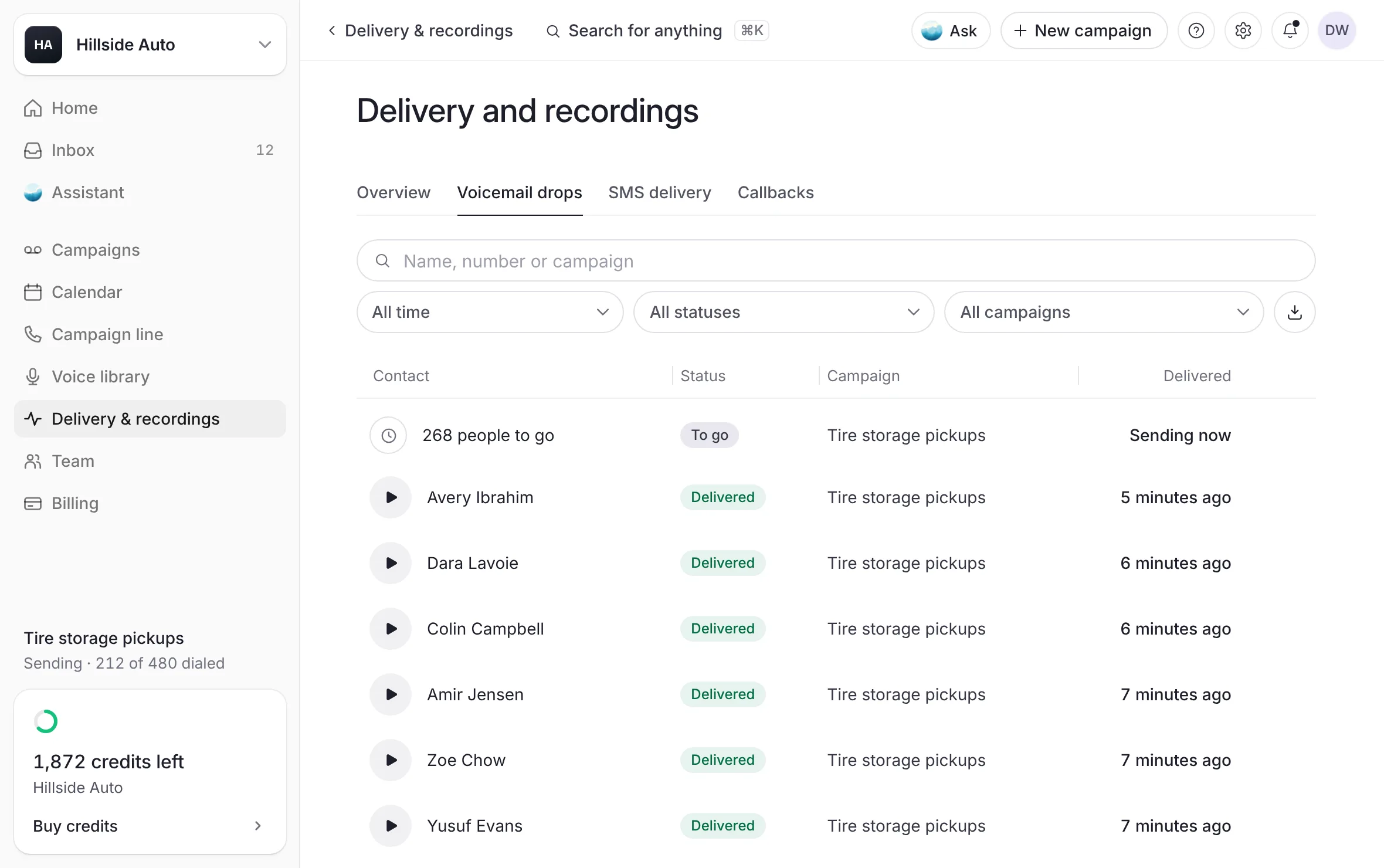 Example
What you see
a table with Contact, Status, Campaign, Phone and Delivered. Each campaign heads its own rows, newest campaign first. A campaign that is still sending starts with one row for the people it still has to dial, such as "people to go".
A line under the table names the campaigns that have not sent yet. Their people show here once they do.
Previous and Next move between pages.
Select a phone number to copy it.
Find a voicemail
Type in the search box (Name, number or campaign).
Or narrow the list:
Date: Last 30 days, Last month, Last 24 hours, Last 7 days, Last 3 months or All time. Or choose Custom range…, pick From and To, and select Apply. The page opens on All time.
Status: All statuses, Delivered, Returned or Sent. To go and Not sent show when a campaign has contacts in them.
Campaign: All campaigns, or one campaign.
Select Clear to put every filter back.
The words are explained in Delivered, returned and to go.
What you see
only the voicemails that match. A returned voicemail shows the carrier's reason beside the name, or "No voicemail available".
Hear what one person heard
Press the play button at the start of a row. The recording plays in the row. A returned voicemail has no play button.
Or select the person's name (or the row) to open its panel. The row's More menu also has View voicemail, Copy number and Open campaign.
What you see
a panel titled Voicemail, with the person, their number and the player. Under it:
Delivery: the voicemail's steps, Queued, Produced, Sent, then Delivered or Returned, with its Status, Voice, Carrier and Length. A returned voicemail ends with the carrier's reason when there is one, then "No credit was used."
What they heard: the words of that person's voicemail. As it plays, the word being spoken is marked.
Links: The campaign, and the person In the campaign's recordings.
Copy number at the foot copies their number.
When there is nothing to hear, the panel says why: the voicemail came back, recordings are heard once the campaign is released to you, or no recording is stored for it.
Export the list
Narrow the list to the voicemails you want.
Select Export CSV (the download button beside the filters).
What you see
a CSV file of every voicemail that matches your filters, on every page of the list, with the columns Phone, Name, Campaign, Status, Carrier, Delivered and Length (s). Times are on your business's clock.
One campaign's people, on its own page
Each campaign's page holds every contact on its list, with their recording, under People on it.
Open the campaign from Campaigns.
Scroll to People on it. The Delivered figure on the page's Delivery card opens it too. On Voicemail drops, a voicemail's In the campaign's recordings link opens it on that person.
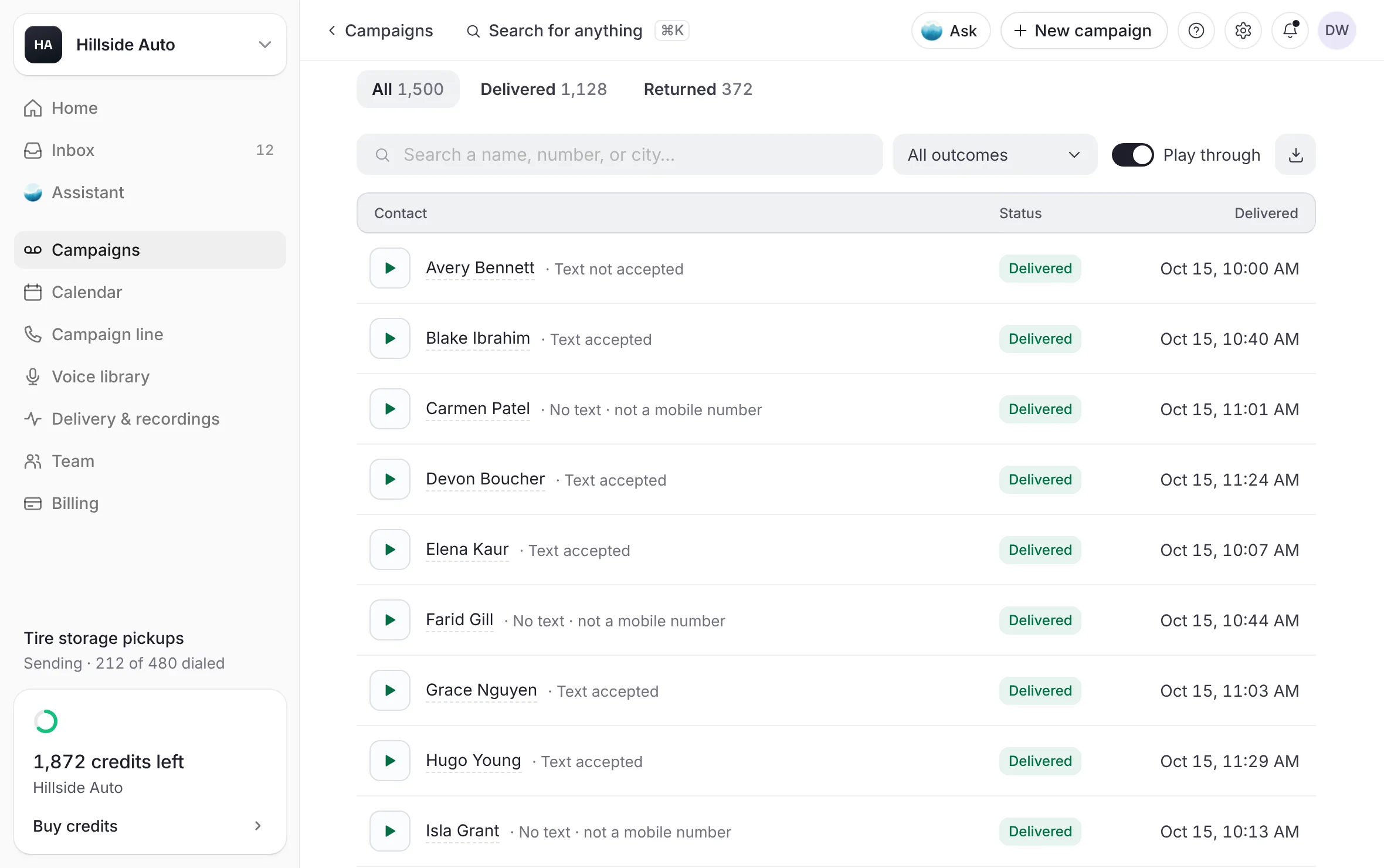 Example
What you see
the tabs All, Delivered and Returned, each with its count, and To go while the campaign sends. Under them, a search box, the Outcome menu, Play through and Export a CSV. Then a table with Contact, Status and Delivered: each contact's play button and name, with what became of them in grey under the name, the voicemail's word, and when it was delivered.
The grey words under a name are the reason a returned voicemail gave ("No voicemail available" when there is none), or what happened to the follow-up text: "Text accepted", "Text: no receipt", "Text not accepted", "No text ·" and the reason, "Replied" or "Opted out".
Narrow the rows with the tabs, the search box, or Outcome: All outcomes, New to you (recordings you have not played), Heard, Replied to the text, and each "No text:" reason that has people. Each choice shows its count.
Press a row's play button to hear that contact's voicemail. Turn on Play through to keep playing the next one. A returned voicemail has no play button.
Select a contact's name to open their panel beside the table.
What you see
the contact's name and number, and where they sit in the list, such as "1 of" the list's contacts. Then Delivered (or Returned) with its time, Status, Phone and Follow-up text. Under Voicemail events, one line says what happened: "Delivered:", that the voicemail landed in their inbox and "One credit was used.", or "Returned:", the reason and "No credit was used." Then the voicemail's two steps, Audio made and Delivered (or Returned), their voicemail on a player with What they heard, and What came back: whether they called back or wrote back.
Step to the next or previous contact with the up and down arrow keys (or J and K), or swipe on a phone. When they wrote back, Open conversation opens their texts.
Export a CSV opens Export results: choose Delivered, Returned or Everything, then select Export. The Export button at the top of the page opens the same window. The file has one row per contact: their name, number, list fields, the result and when it was delivered.
The table shows the first contacts. The button under it, Showing … show more, adds more.
On a phone, each contact is one row: the play button, the name over its grey words, and the word on the right. The time is in their panel.
Recordings show once our team has checked them. Until then, the section says why, for example Recordings unlock once it's approved, and the panel says "Their voicemail plays here once our team has checked the recordings."
A campaign with one take for everyone has one recording for the whole list, under The recording.
The rest of the campaign's page is in A campaign's page.
Good to know
Every filter is kept in the page's address, so a copied link opens the same view.
When a campaign has more voicemails than the page reads at once, a line says how many it shows. The campaign's own page holds every one.
On a phone, the page shows Delivered out of those dialed, Returned and, while a campaign sends, To go at the top, then one block per campaign.
Before any campaign goes out, the page says No voicemails yet (or Nothing has gone out yet when your campaigns have not sent), with View campaigns.
Related
Last updated October 19, 2026
Was this helpful?